How to Use an AI Agent to Sort Emails Safely

Written by
Springbrand Editor Team
Editorial team
Springbrand Editor Team creates and maintains blog guides on AI tools, automation, marketing, and agent workflows.

Reviewed by
Springbrand Audit Team
Editorial review team
Springbrand Audit Team supports editorial quality through source checking, clarity, and consistency across the blog.
Updated
Published
Learn how to use an AI agent to sort emails with clear categories, confidence thresholds, protected actions, review, and a reversible rollout.
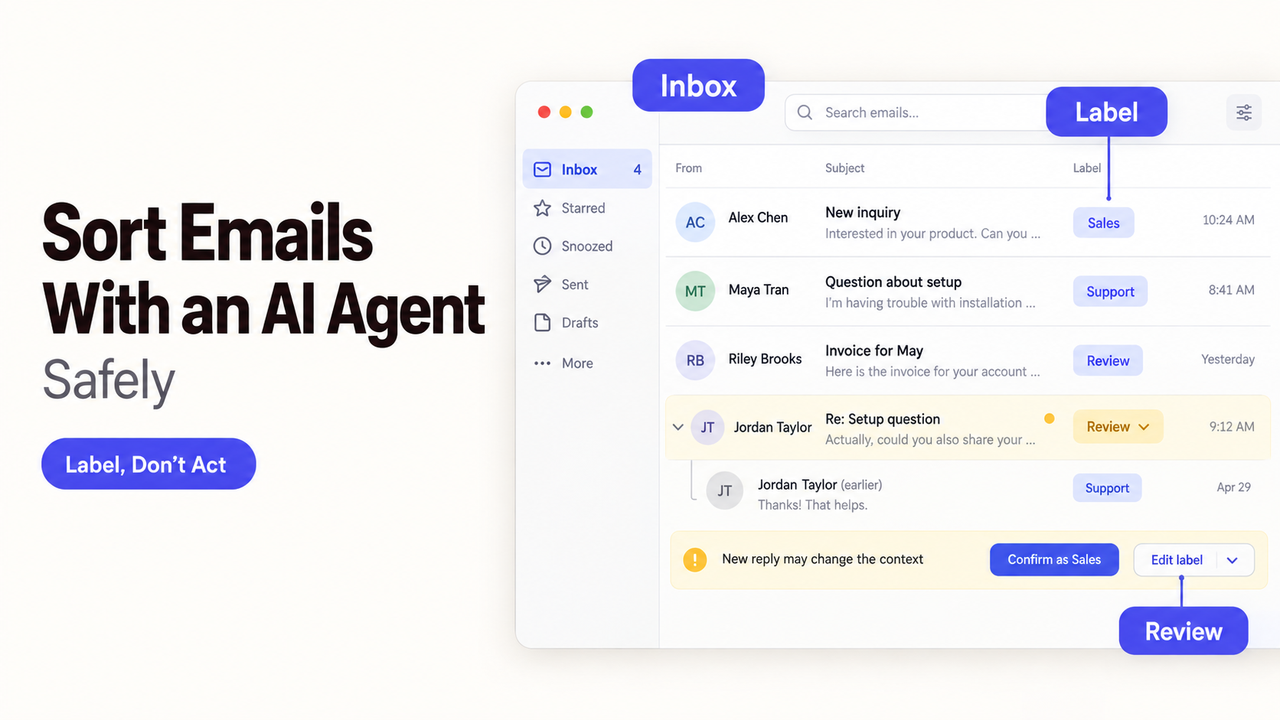
The risky message is often the new reply added after an agent has already labeled the conversation. The topic may have changed, the earlier label may no longer fit, and the new message may not inherit it.
I’m Alex. If you want to know how to use an AI agent to sort emails, start with a small promise. The agent may classify and label messages, but it may not reply, forward, or delete them. That boundary gives the team something useful to test without handing over the inbox.
This platform-neutral workflow uses Gmail documentation checked on September 18, 2026. It is not a hands-on test or a claim that SpringBrand provides a Gmail connection.
Decide What the Email Agent May Change
Write the action boundary before defining categories. A first release should leave the message content, recipients, read state, and inbox placement unchanged. It can suggest a category or apply a clearly marked trial label.
Labels, Folders, Priority, and Escalation
Choose one visible change per message. In Gmail, that could be AI-Triage/Sales or AI-Triage/Review; other platforms may use categories or review folders.
Keep priority separate from topic. A sales inquiry can be routine or urgent. Record both values so a keyword such as “urgent” does not decide the destination by itself.
Escalation should create a review item, not send a customer response. Include the message link, proposed category, reason, and deadline.
Actions That Still Need Approval
Require approval before the agent sends, forwards, deletes, marks spam, or writes elsewhere. These actions affect another person, remove access, or create an external record.
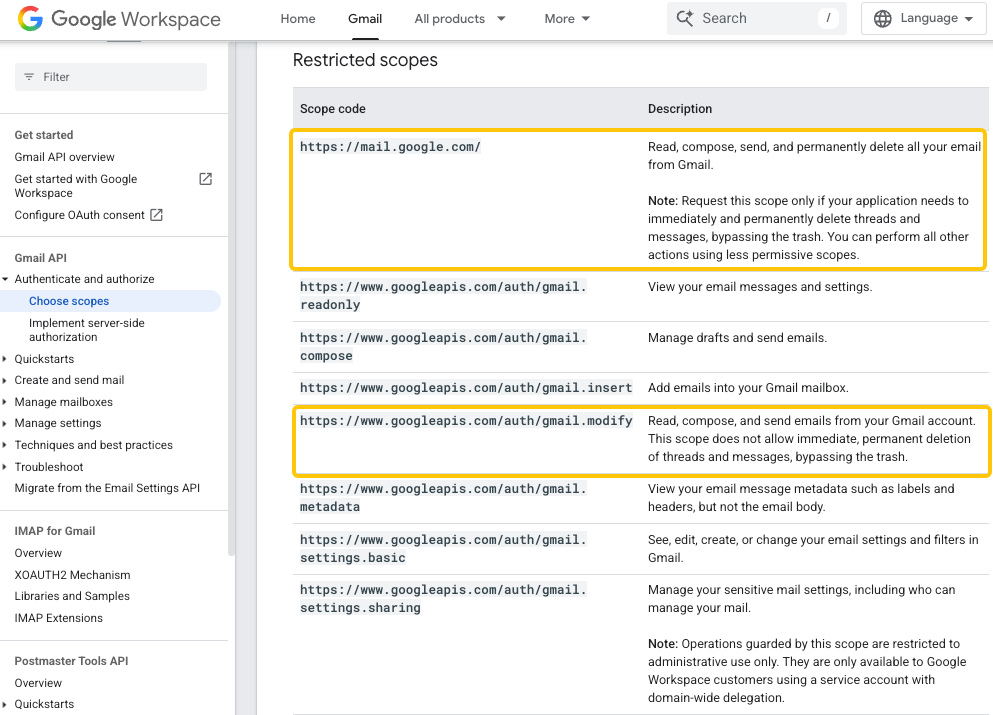
Technical permissions may be broader than your intended task. Google’s current Gmail API scope documentation says gmail.modify can read, compose, and send email as well as change mailbox data. Limit the agent’s available tools even when the underlying authorization covers more actions.
Define Categories and Exceptions
Use categories that lead to different work. “Important” is hard to maintain. “Customer issue,” “new sales inquiry,” “supplier document,” and “operational alert” each name a likely owner.
Use Business Rules Before Model Judgment
Let deterministic rules handle obvious cases. An approved monitoring address, exact order-ID format, or known newsletter sender may be enough to select a category without model interpretation.
Rules should also block model action. Messages from legal counsel, employee relations, security alerts, or named executives can go directly to restricted review. Do not send sensitive mail to a model merely to let the model decide that it is sensitive.
Use the model for varied wording, incomplete subjects, or intent that depends on message context.
Set a Low-Confidence Route
Do not force every message into a business category. Add Review, Unsupported, and Possible Duplicate routes.
Confidence alone is not enough. Route a message for review when content is unavailable, categories conflict, the sender is protected, or the requested action falls outside the trial.
Build the Email Sorting Workflow
The workflow needs a stable record for every decision. A useful classification contract contains:
Field | Example purpose |
Message and thread ID | Prevent duplicate processing |
Rule result | Show whether a fixed rule decided the route |
Proposed category and priority | Separate topic from urgency |
Confidence and reason | Explain the model’s recommendation |
Protected-action flag | Block send, delete, forward, or external write |
Applied change | Record the exact label added or removed |
Previous state | Support reversal |
Read New Messages
Trigger on a new message, not every mailbox refresh. Store the provider’s message ID and thread ID before classification. If the same event arrives again, the workflow should recognize it rather than add another label or escalation.
Read only what the task needs. Metadata may cover sender allowlists and known alerts. Body or attachment access needs a documented reason and approved retention handling.
Classify Each Message Into Structured Output
Require a fixed response such as category, priority, confidence, rule hit, exception reason, and recommended next step. Reject output that invents a category or omits a required field.
Point to the relevant signal without copying the email into another log. “Known billing sender plus failed-payment notice” is enough to explain this route.
Apply Labels and Send Escalations
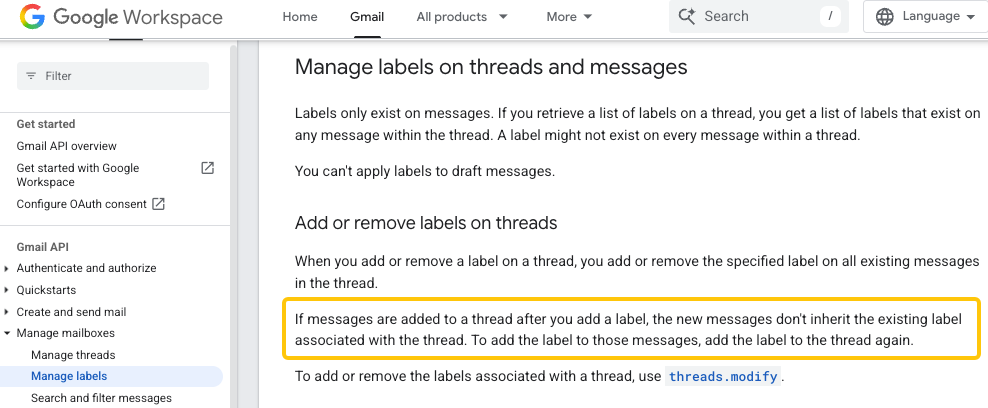
Apply only the trial label after validation. Gmail treats labels as message-level objects, even when they appear on threads. Its label guidance also notes that a new reply does not inherit labels previously applied to the thread. Recheck each new message.
Send an internal alert only when the category requires one. Deduplicate alerts with the message ID, category, and workflow version so a retry does not notify the team twice.
Record Decisions and Prevent Loops
Save the message ID, before-state, classification, label, timestamp, workflow version, and run ID. Avoid storing another full copy of the message.
Mark the event as processed before downstream notification. Exclude the workflow’s own alerts from intake, or it may classify its notification as a new operational email.
Test the Workflow With Historical Email
Run the first test without changing any messages. Use a representative, authorized sample and compare the proposed categories with decisions made by the mailbox owners.
Include short replies, forwarded chains, changed subjects, attachments, automated notices, multilingual messages, and mail belonging to two teams. Measure missed urgent messages, false escalations, review volume, and reviewer disagreement.
Then enable a conspicuous trial label for a small batch. Keep the original location unchanged and prepare a reversal list before the run begins.
Common Email Sorting Failure Modes
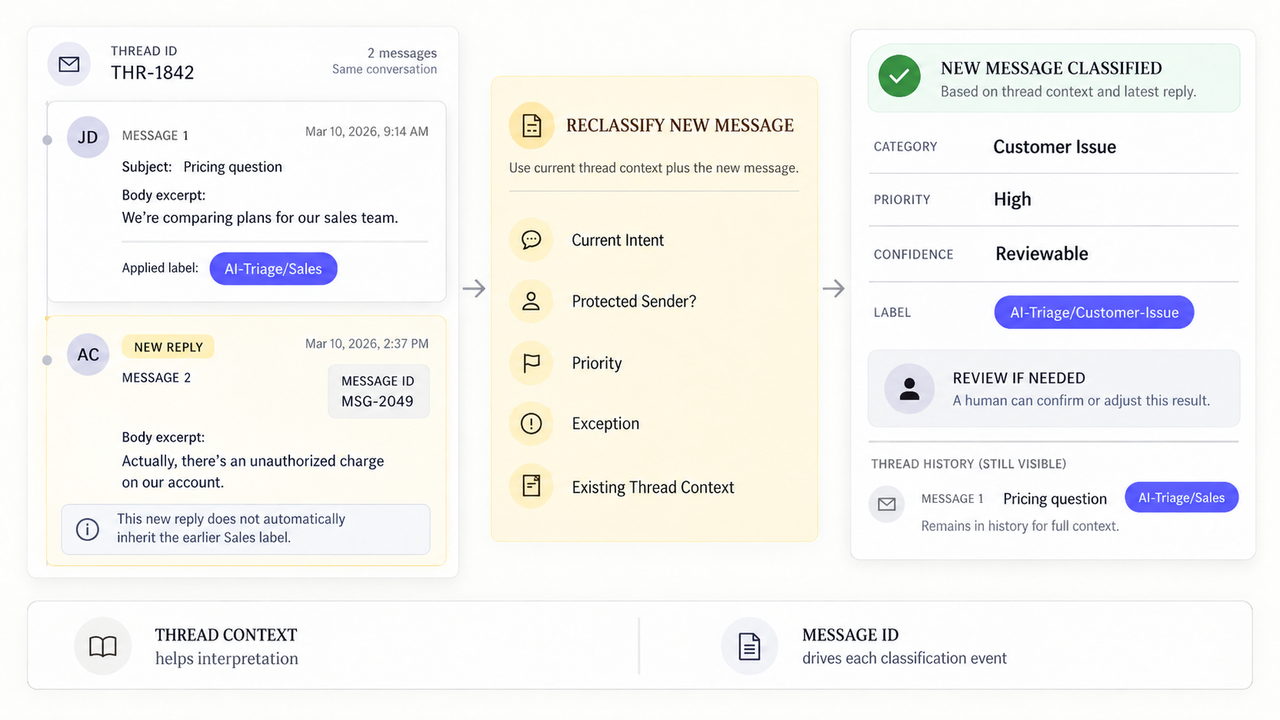
Thread-level assumptions cause many quiet errors. A new reply may change the request, add a protected recipient, or arrive without inheriting an earlier label. Reclassify the new message with current thread context.
Other failures include quoted text being mistaken for a new request, signatures triggering keywords, unread attachments, and language changes inside a thread. High confidence can still accompany incomplete input.
Permission failures need their own route. Do not retry indefinitely when the token expires or a mailbox owner revokes access. Pause the mailbox, notify its owner, and leave unprocessed messages untouched.
Improve the Workflow Without Expanding Access
Most early improvements should change rules, categories, examples, or review thresholds—not permissions. Add a deterministic rule when reviewers repeatedly correct the same pattern. Merge categories that owners treat identically.
Review false negatives before chasing a lower manual-review rate. Missing one urgent customer issue matters more than correctly filing another newsletter.
If this controlled email route later needs an agent capability, check SpringBrand’s current plugin marketplace for a verified fit. Confirm the exact actions and data boundaries; this guide does not establish that an email connector exists.
FAQ
Can an email agent sort messages in delegated or shared mailboxes?
Yes, if the platform and administrator explicitly authorize access to that mailbox. A human delegate’s access does not automatically prove that an application may use the same mailbox. Google’s delegation guidance distinguishes user delegation from service-account administration, so confirm the identity and scopes used by the integration.
Can an email agent sort archived messages without returning them to the inbox?
Yes, when the integration can query archived mail and modify labels without adding the inbox label. In Gmail, removing INBOX is the archive action; adding a separate user label does not require returning the message to the inbox. Test the exact query and label change on a disposable set first.
What happens when the subject changes inside an existing thread?
Treat the provider’s message and thread IDs as authoritative, not the subject line alone. Reclassify the new message because its intent may have changed. If the provider starts a new thread, process it as a new conversation while checking for a related earlier record.
Can administrators review which messages the agent accessed?
Sometimes, depending on the platform, subscription, event type, and audit configuration. Google’s current Gmail activity-event reference includes an event for an application accessing a message on a user’s behalf. Keep a separate workflow log because provider audit data may not include the model decision or resulting label.
Can users reverse labels applied during an incorrect batch run?
Yes, if the workflow recorded every message ID and its previous labels. Gmail’s batch-modification method can add or remove labels for a specified set of messages, but it is not an automatic rollback system. Reverse only the changes from that run and preserve later user edits.
Conclusion
The safest way to begin AI email sorting is with rules, read-only recommendations, and one reversible label. Give uncertain messages a review queue and keep replies, forwarding, deletion, and external updates outside the first release.
An email triage agent becomes useful when mailbox owners can see why a message moved and correct the decision. They should also be able to undo a bad batch without reconstructing the inbox by hand.
Recommended Reads
Explore SpringBrand
Turn ideas into working workflows
Connect agents, APIs and tools in one workspace. Start with a task you want to get done.
Get started free
One account. 10,000+ APIs & capabilities
Give your agent APIs and plugins without separate keys or integrations for every provider.
Explore APIs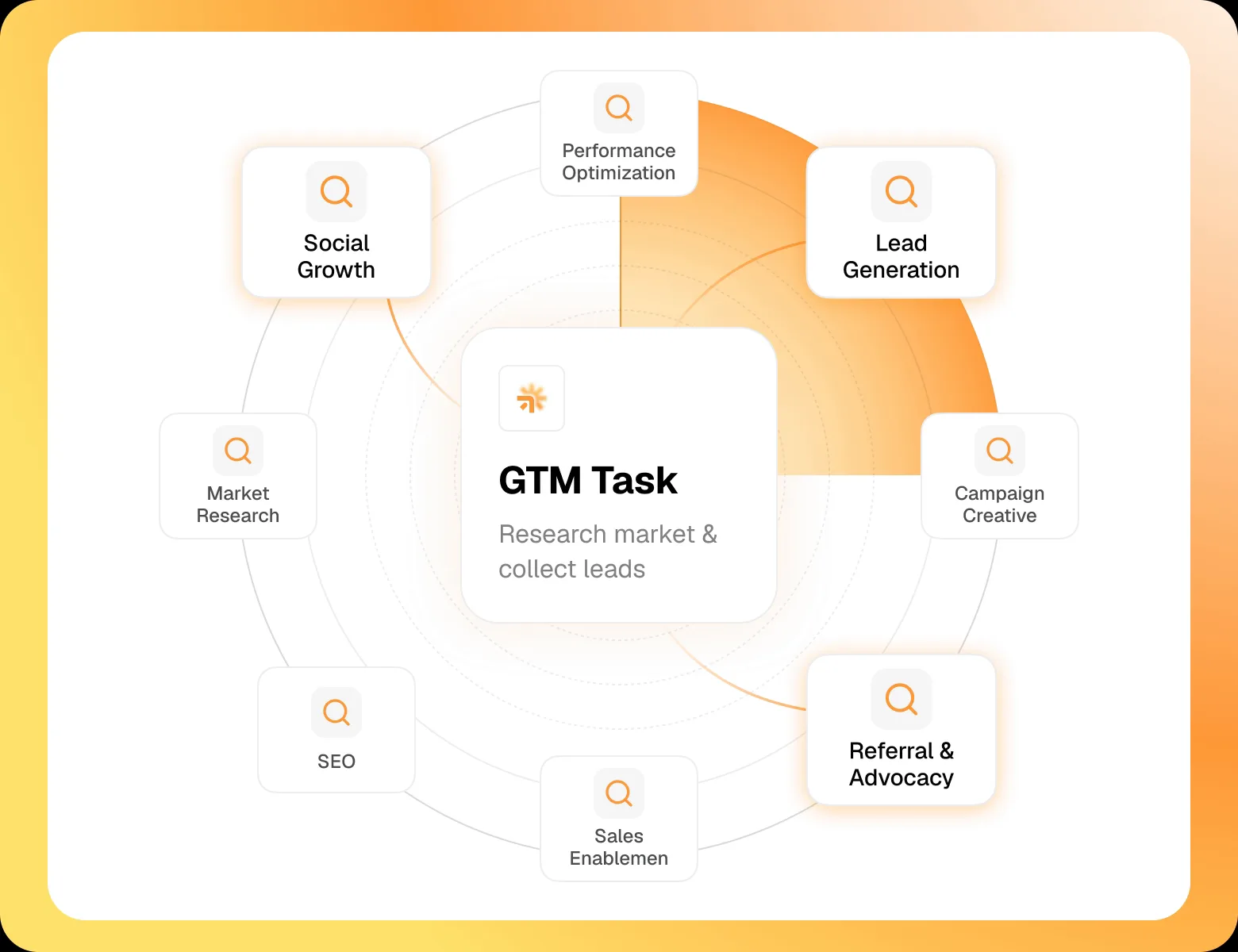
No tool expertise needed
Describe your GTM task. SpringBrand chooses the right APIs and plugins for your agent automatically.
Find tools for your task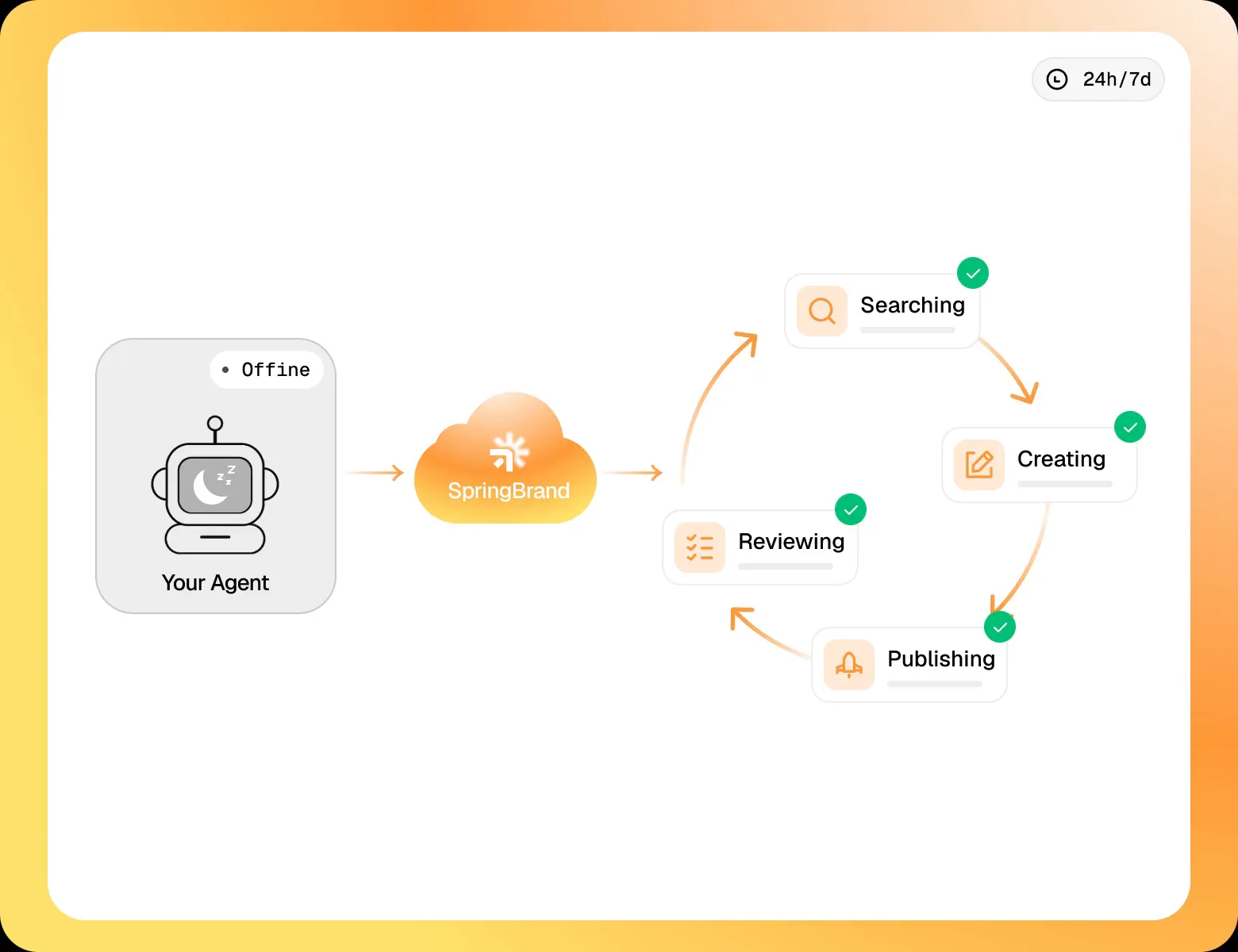
Run tasks 24/7
Connect your agent to SpringBrand to keep tasks running automatically, day and night.
Connect your agent