Installation
▤ MarkdownInstall SpringBrand in ChatGPT Desktop — Codex
Use SpringBrand tools in ChatGPT Desktop (Codex).
These steps connect SpringBrand to the Codex view in ChatGPT Desktop. For the Work view, use MCP settings.
1. Sign up or sign in
Create a SpringBrand account, or sign in if you already have one.
2. Install SpringBrand
Install through your Agent
Paste this prompt into a new conversation in ChatGPT Desktop (Codex):
Install or update SpringBrand in ChatGPT Desktop (Codex) using https://plugin.springbrand.ai/INSTALL.md.Enable Full Access before installation begins so your Agent can install SpringBrand and save its connection settings.
To run the commands yourself, use the terminal setup below.
3. Authorize the connection
When your Agent asks to connect your account, choose an authorization method:
- API key: open Account Settings → MCP API Keys, then click View installation key or Create key. Provide the key when your Agent asks.
- Browser sign-in: ask your Agent to use browser sign-in, then complete the authorization in your browser. Keep the setup conversation open until your Agent confirms the connection.
4. Start using SpringBrand
When your Agent confirms that setup is complete, restart ChatGPT Desktop (Codex) and open a new conversation.
Show me the SpringBrand tools available in this conversation.Once the tools are available, try your first task. If they are missing, see Troubleshooting.
Optional: set up from the terminal
With Node.js and npm installed, run each command separately. Continue only when both succeed:
npm install -g @springbrand/cli@latestsp --versionConnect your account with an API key or browser sign-in:
Connect with an API key
Copy a key from Account Settings → MCP API Keys. Replace {{INSTALL_KEY}} below with your key, then run:
sp connect codex --url https://connector.springbrand.ai/mcp --api-key {{INSTALL_KEY}} --jsonOr use browser sign-in
For browser sign-in (OAuth), run:
sp connect codex --url https://connector.springbrand.ai/mcp --jsonRun the login command printed in the output, if there is one, then authorize access in your browser. Keep the terminal open until sign-in finishes.
Complete any remaining connection checks shown in the output, then restart ChatGPT Desktop (Codex) and open a new conversation. For errors or unfinished setup, see Manual installation checks.
Optional: manual installation in Codex
Follow this illustrated guide to install SpringBrand manually in ChatGPT Desktop (Codex).
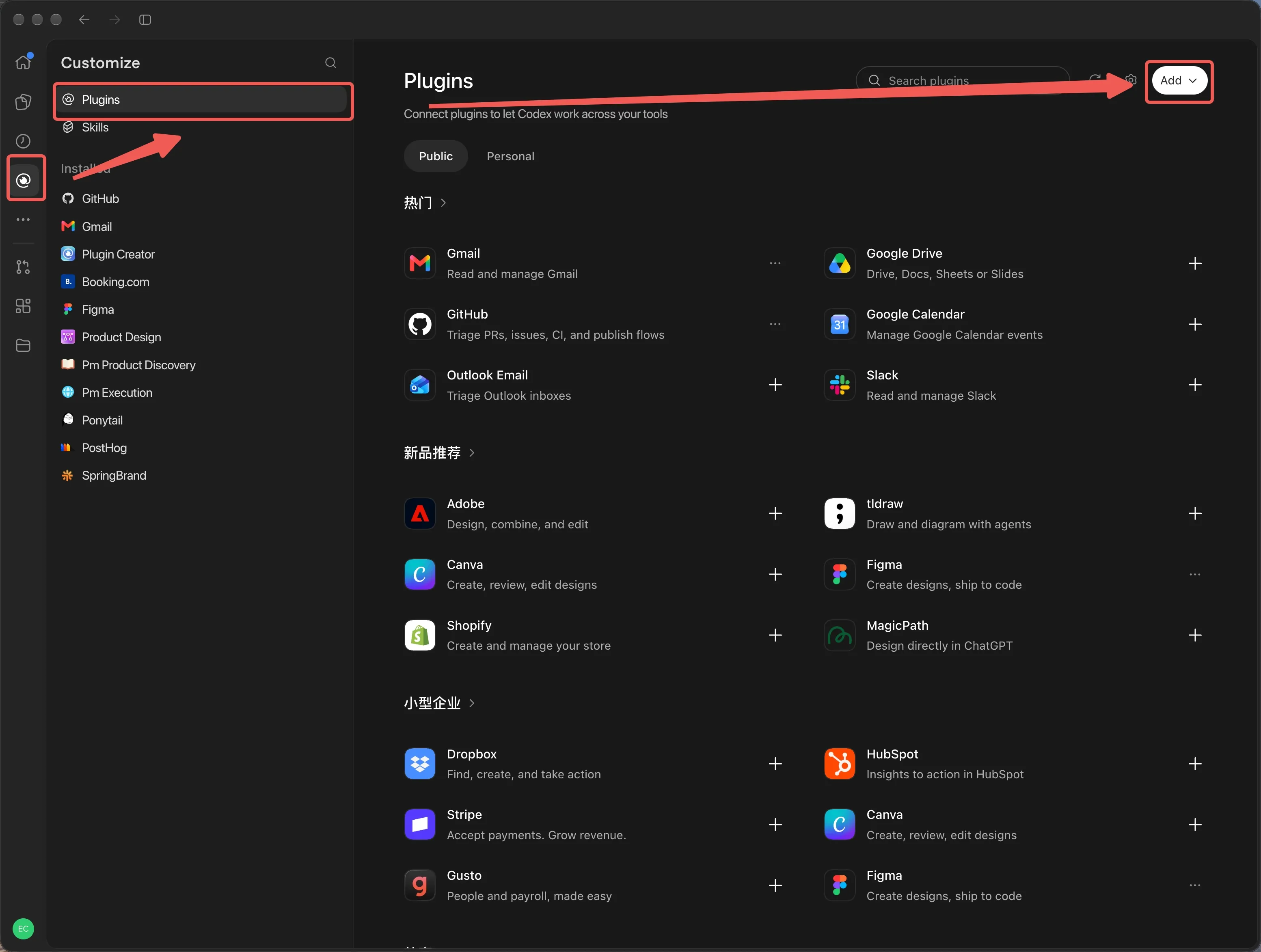
1. Open Plugins
In Codex, open Customize → Plugins, then select Add in the upper-right corner.
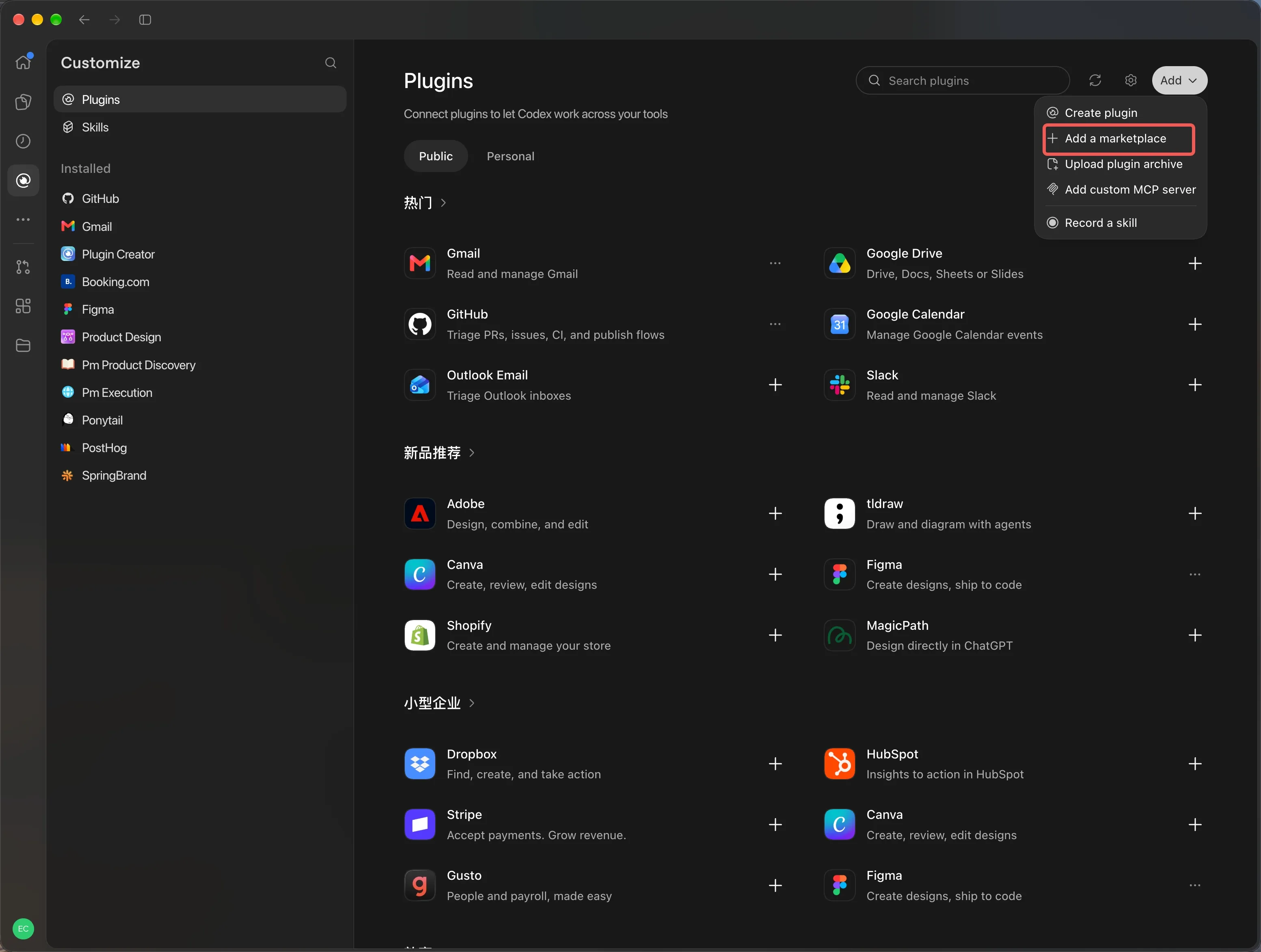
2. Add a marketplace
In the Add menu, select Add a marketplace.
3. Enter the SpringBrand marketplace source
Paste this URL into Source, leave the other fields at their defaults, then select Add marketplace:
https://github.com/springbrand-lab/springbrand-agent-setup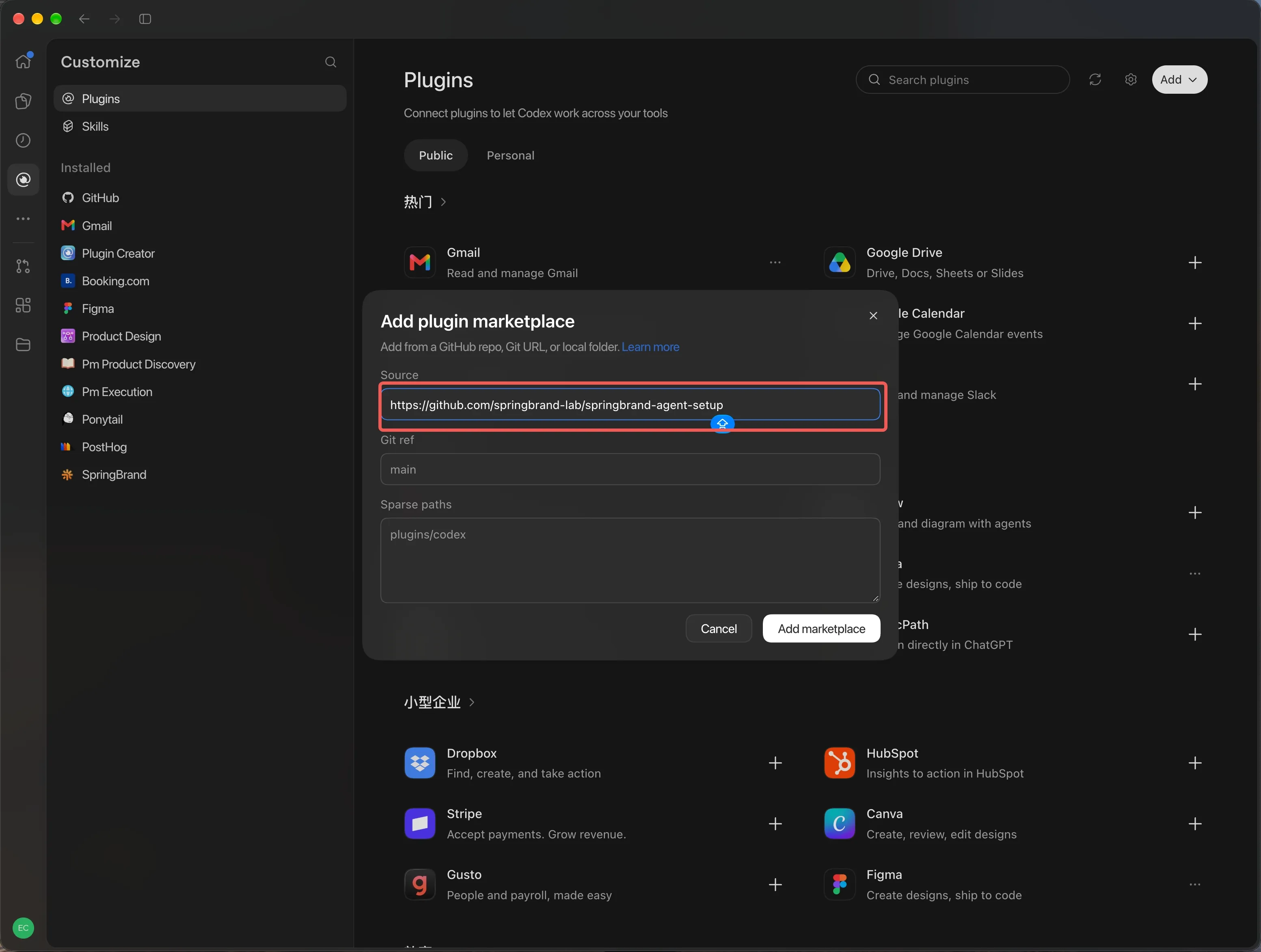
4. Install SpringBrand and sign in
- Find SpringBrand in Plugins and select Install.
- Open a new Codex conversation and ask it to use SpringBrand.
- If Codex prompts you to connect the
springbrandMCP server, complete sign-in and select Allow access in your browser. - If you see
Authentication requiredwithout a sign-in prompt, runcodex mcp login springbrandin a terminal and select Allow access in your browser. - Open a new Codex conversation and ask it to show the available SpringBrand tools.