Best Human-in-the-Loop Workflow Tools in 2027
Written by
Alex
Springbrand Researcher

Reviewed by
Springbrand Audit Team
Editorial review team
Springbrand Audit Team supports editorial quality through source checking, clarity, and consistency across the blog.
Updated
Published
Compare the best human in the loop workflow tools for pausing consequential actions, assigning reviewers, and resuming runs safely.
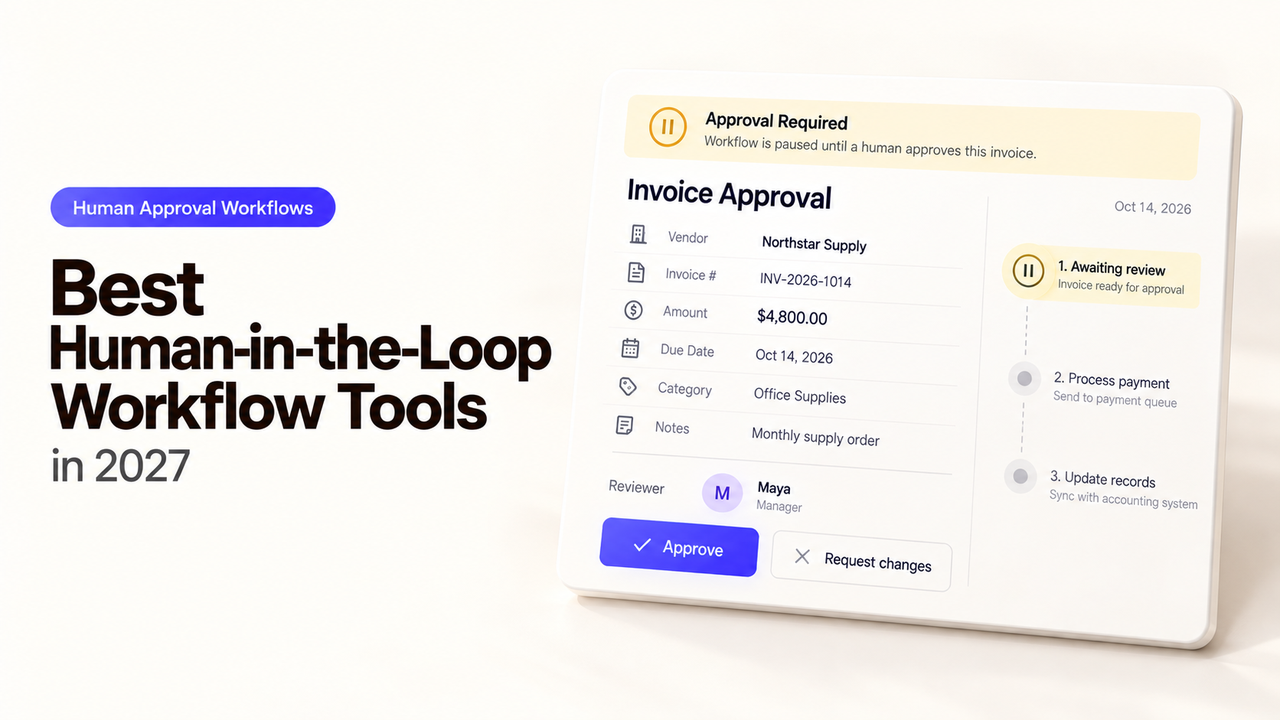
A sales agent drafts a follow-up email, but the account owner wants to read it before it reaches a prospect. The useful pause happens immediately before Send, when the recipient and words are final. An approval earlier in the process may cover a different draft; an approval afterward is just a notification.
I’m Alex, and I’ll compare four ways to put that decision into a running workflow. Each option faces the same question: can the right person see the exact proposed message, reject it, and tell whether it was eventually sent?
Which Workflow Actions Need a Human Decision?
Pause before an action that is hard to undo or carries a decision the software cannot make on its own. An external email is a good example: a wrong recipient may disclose private details, while a misleading claim can be forwarded before anyone catches it. The same reasoning applies to changing a customer record, issuing a refund, or publishing a public reply.
For the email example, let the agent gather account context and prepare a draft. Ask the reviewer to decide on recipient, subject, body, and any attachment together. A changed field creates a new proposal. Rejection should leave the send action untouched, and silence should lead to a defined stop or escalation. This is runtime human review in AI workflows, rather than labeling training data or collecting model feedback.
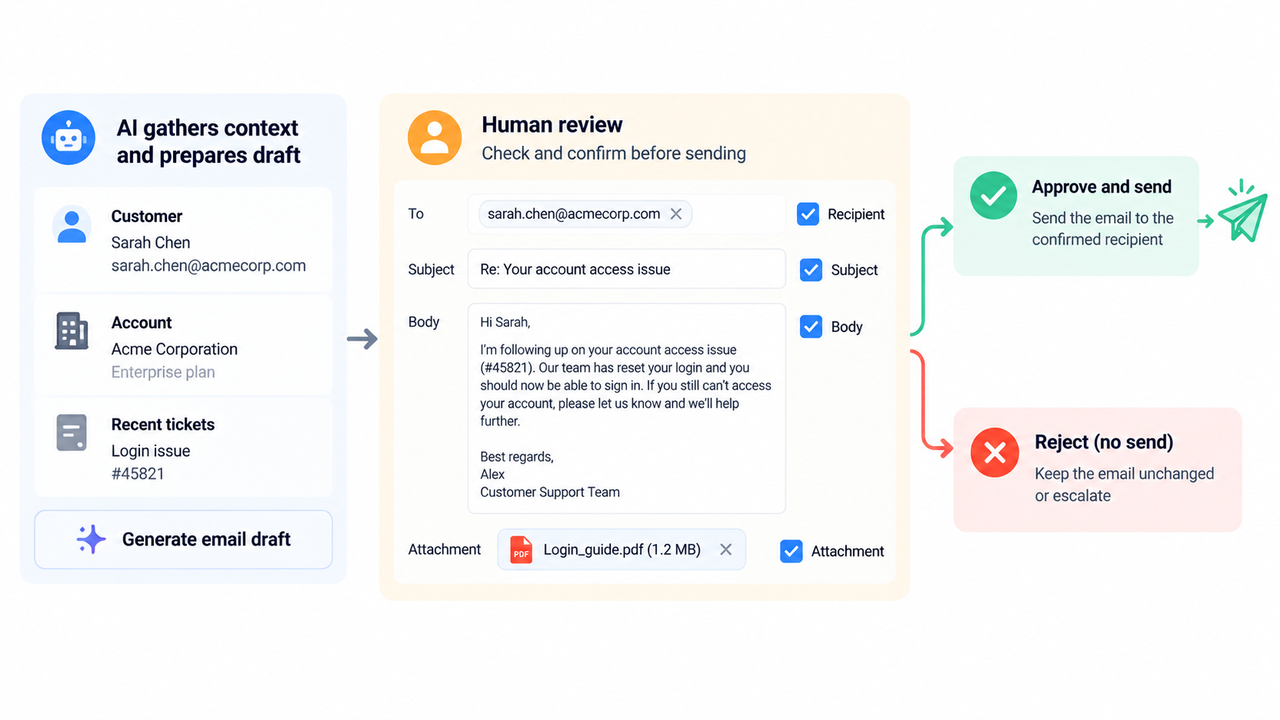
Show the account, the source of any personalized claim, and the destination address. “Send follow-up” hides too much.
How Should Approval Tools Be Compared?
Use one prepared message in every trial. Try an outside-domain recipient, a changed draft, a rejection, silence, and an email-provider timeout. Record what the reviewer saw and whether the provider sent the message.
Decision point | What to check in the same email trial |
Pause | Does the request stop the actual send action, or merely alert someone? |
Assignment | Who can approve, and can that person see enough without editing the whole workflow? |
Proposal | Are recipient, subject, body, and attachment visible together? |
No or no response | Does rejection block sending? Where does an unanswered request go? |
Resume | Does approval use the reviewed values if the draft changes while waiting? |
Evidence | Can the team connect a named decision to a specific send result? |
Give each proposal an ID, preserve the reviewed values, and check them again before sending. The workflow owner must build this link if the tool does not provide it.
1. Gumloop — For Agent Tool-Call Approval
Gumloop is a strong first look when an agent itself chooses the email action. Its human-in-the-loop controls can require approval for an app, for writes and deletes, or for an individual tool. Conditional app rules can inspect tool arguments, such as whether an email address is outside the company domain. The agent pauses before a gated call; approval lets it continue, while rejection prevents that call.
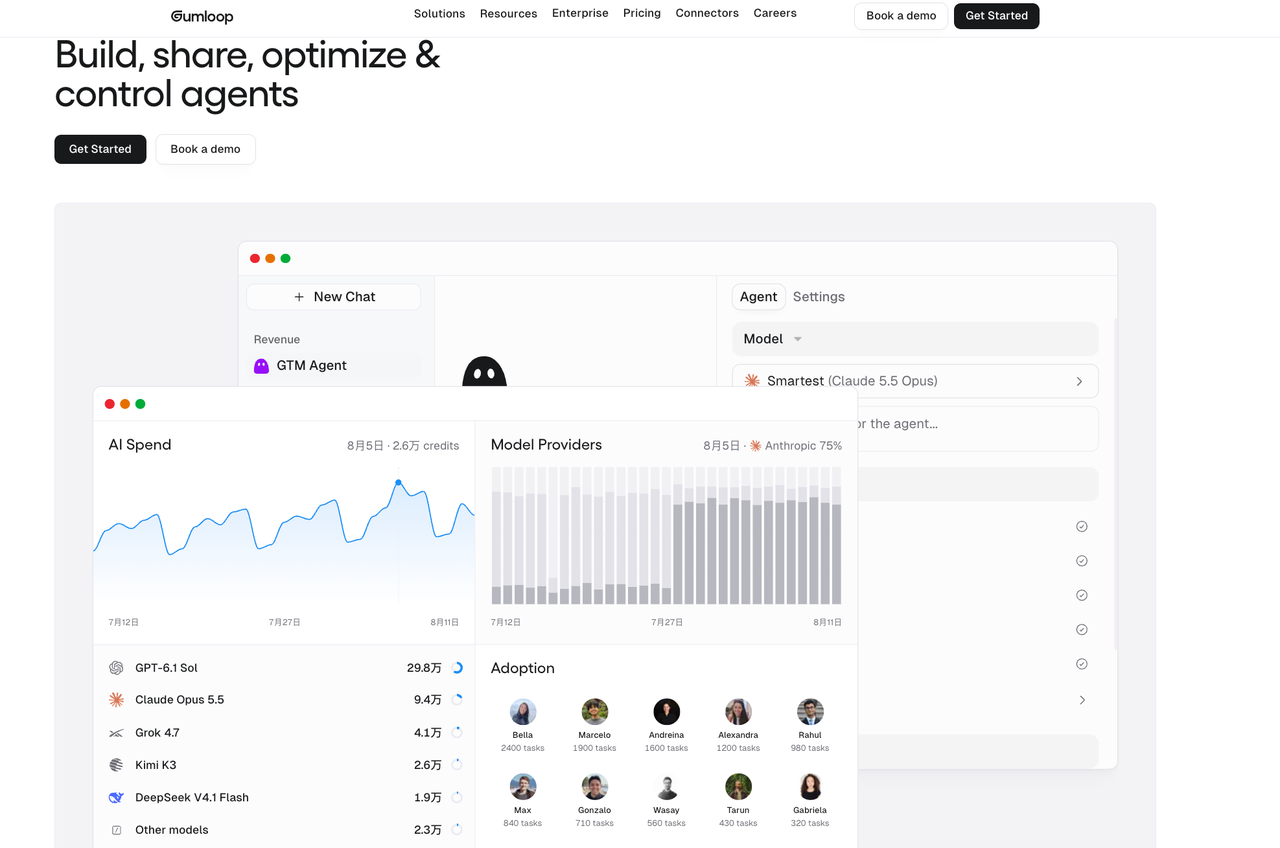
For this trial, gate the email-send tool and inspect the approval card. Gumloop’s example card shows To, Subject, and Body, but its docs warn that cards display key details rather than every argument, verify against the current approval-card documentation. If an attachment or CC address matters, confirm that the reviewer can inspect it before enabling sends. Also decide whether “Don’t ask again for this tool” fits your policy: it changes future approval behavior, not just the current request.
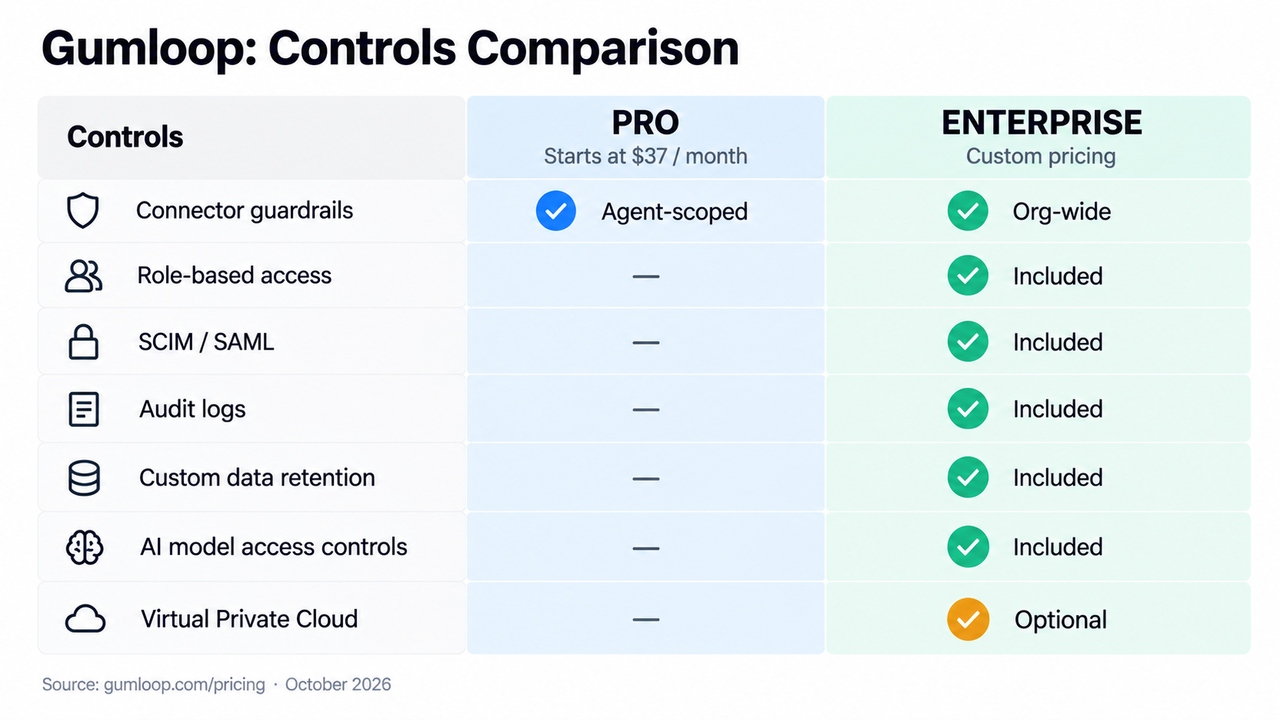
Gumloop suits a team that wants review close to agent tool use. Choose who receives requests, check wait limits, and capture the email provider’s outcome. Its pricing page separates Pro and Enterprise controls; verify required policy and audit features on the intended plan.
2. n8n — For Configurable Tool-Call Review
n8n fits a team willing to design its own approval route. Its AI Agent human-review feature pauses before selected tools run. The reviewer can see the tool name and configured parameters, then approve or deny. Requests can go through channels including n8n Chat, Slack, Microsoft Teams, and email. Denial cancels that tool call and returns the decision to the agent.
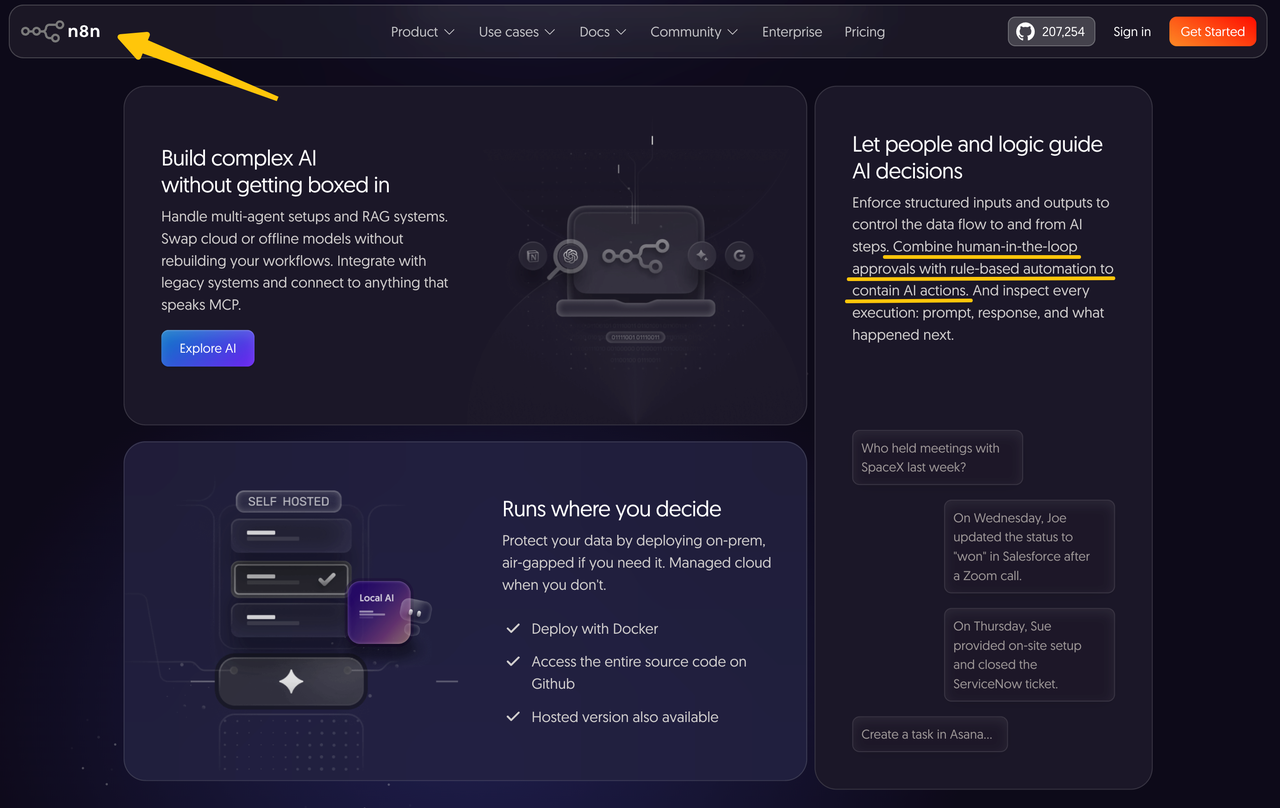
Put the send tool behind review, and include the recipient and full message in the approval request. n8n exposes $tool.parameters for that purpose. Then check whether your chosen channel presents the information clearly enough to make the decision. The agent’s instructions must also say what to do after denial; otherwise, a rejected send could become a fresh attempt with altered wording.
This route suits a team already maintaining n8n workflows. The operator still defines reviewer identity, expiry, duplicate decisions, and a record of what the email service accepted.
3. Zapier — For Approvals Inside Existing Zaps
Zapier is the most direct addition when the message already moves through a Zap. Its Human in the Loop Request Approval action pauses a run and presents mapped fields to a reviewer. The reviewer can approve, decline, or edit submitted content if editing is enabled. Map the reviewed recipient, subject, and body into the eventual send step; otherwise, the Zap may display one set of values and send another.
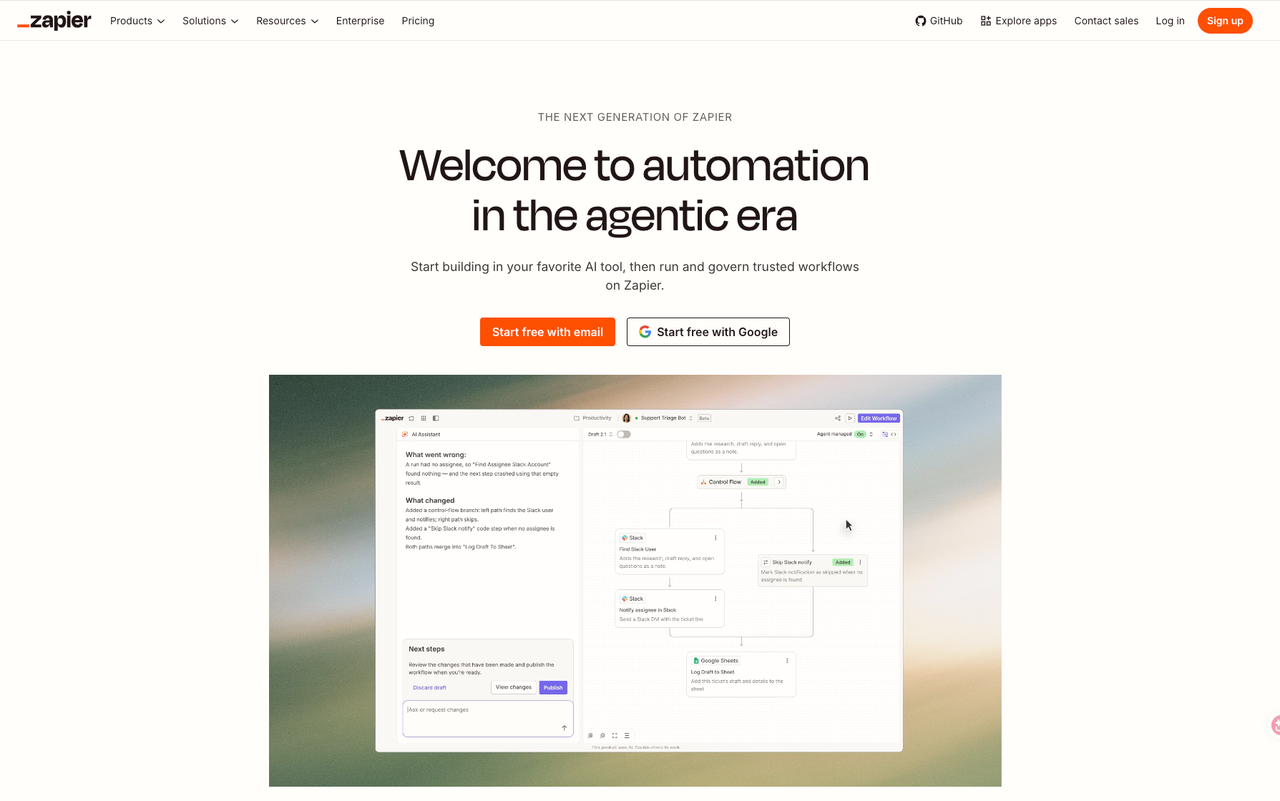
The decline and timeout settings deserve special care. Zapier can either stop or continue after a decline, and it can end or continue a run after a timeout. If continuation serves another branch, require an explicit Decision = approved check before Send. A reviewer must have a Zapier account and access to the Zap; a notification sent to an outside email address does not grant approval rights on its own. Zapier’s help page also says Professional accounts can request approval only from the account owner, so confirm the team arrangement before rollout.
The complication is batch review: Zapier bars this action within or after a Looping step. Split records into separate runs, then price the task volume and review load.
4. Power Automate — For Microsoft-Centered Approval Flows
Power Automate is a natural fit when the team already uses Microsoft 365, Entra identities, and Outlook. Microsoft’s Start and wait for an approval walkthrough assigns a request, pauses the flow, and uses the approver’s response in a later condition. The walkthrough then places the email action only on the approved branch. That order is what makes the decision meaningful.
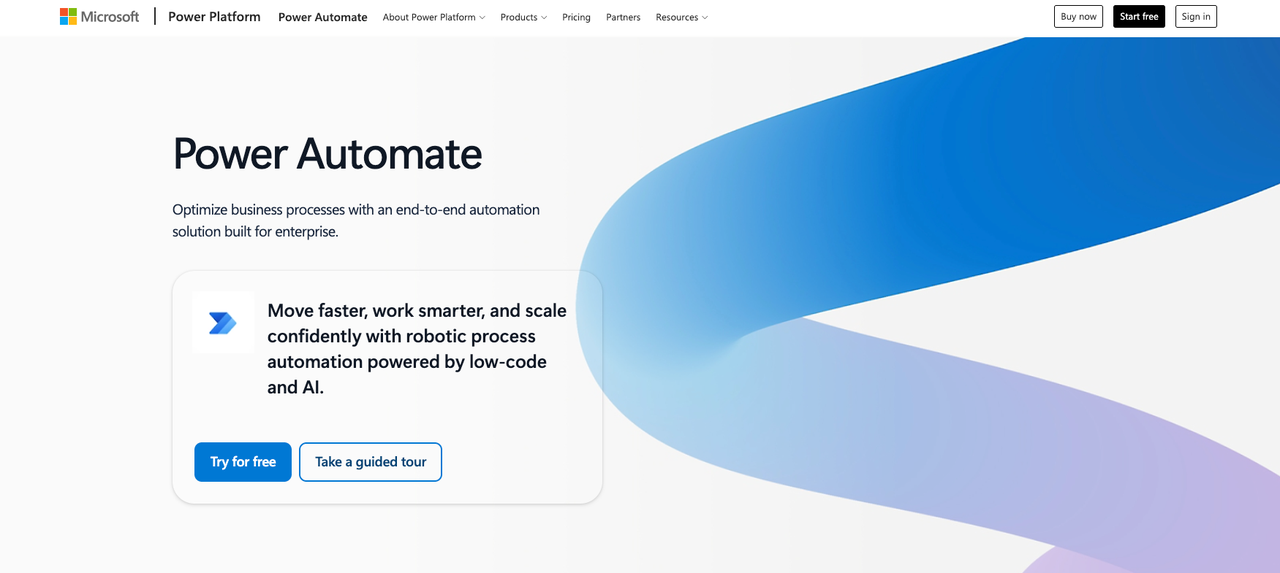
For the prospect email, populate the approval details with the exact message and recipient, not a generic request title. Use the approval response to branch, and preserve the message version that the reviewer saw. Microsoft also supports guest approvers through Entra guest access, subject to tenant and environment settings. That makes it possible to include an external partner, but an emailed link alone is not proof that the guest can respond.
Power Automate’s flow limits include a 30-day run duration, counting time spent waiting for approval. A stalled request therefore needs its own timeout and follow-up path. Check connector licensing and the permissions of the account that sends the email. A correctly approved flow still fails if that connection expires while the request is waiting.
Which Approach Fits Your Existing Workflow?
Choose the checkpoint closest to the action you already run. Gumloop or n8n makes sense when an agent decides to call the send tool. Zapier suits a Zap with a named reviewer and a straightforward post-approval step. Power Automate suits a Microsoft flow whose approvers already live in that identity system. These are different operating environments, not four interchangeable approval buttons.
If no one owns the queue during vacation, start with a shared draft and manual send. Before buying AI agent approval software, decide who watches pending requests and reconciles ambiguous sends.
What Can Go Wrong While a Run Waits for Approval?
The draft can change. A recipient can leave the account, an attachment can be replaced, or an agent can regenerate the body. Approval must apply to the version the reviewer saw. Store the proposal ID and reviewed values, then compare them with the planned send. If they differ, return to review.
The reviewer can be unavailable. In Zapier, a timeout can continue or end the run; for an external message, use an approved-only branch if the run continues. In Power Automate, the flow itself has a finite run duration. For Gumloop and n8n, check the intended channel and deployment for wait limits and escalation behavior. “Pending” is an operational state with an owner, not an indefinite safe place.
Finally, a send can fail after approval. A timeout from the email provider may mean no message went out, or that it went out and the confirmation was lost. Give the action a stable proposal ID and inspect sent-mail or provider history before retrying. Record the reviewer, decision, proposal version, send request, and provider result together. Approval establishes permission to act; delivery evidence establishes what happened.
FAQ
Does an external reviewer need a paid account to approve?
It depends on identity and licensing. Zapier requires a reviewer account and Zap access; Professional users can request approval only from themselves. Power Automate can assign tenant guests, subject to licensing and access settings. For Gumloop and n8n, test the chosen channel with an outside reviewer.
Can an approver delegate a decision during an active run?
Power Automate documents reassignment by the recipient; the requester cannot reassign that pending request. For other tools, test substitute access and conflicting decisions on the intended plan.
Is the proposed external action visible before approval?
It can be, but the builder must expose the right fields. n8n can show tool parameters; Zapier presents mapped review content; Power Automate displays the details you put in the request. Gumloop shows key action details, with a warning that some arguments may be hidden. Review a message with a CC address and attachment to find the gaps before launch.
How is a decision linked to the action that ran afterward?
Give each proposal an ID and preserve the values approved under that ID. The send step should use those values, then store the provider result against the same record. Native run histories help investigate, but the team must confirm what each platform retains and for how long. A decision log without the resulting send status answers only half the question.
Can a reviewer approve one item but reject another in the same batch?
Yes, if the workflow creates an independent decision for each item. Do not ask someone to approve a mixed batch as one request when outcomes may differ. Zapier bars its Human in the Loop action within or after a Looping step, so separate Zap runs are the clearer route there. In the other products, test item-level review and recovery before assuming a batch can resume safely.
Conclusion
For an external message, the best human in the loop workflow tools place the reviewer immediately before sending. They keep that decision tied to the message that actually leaves. Pick an option your team can operate. Then run four checks: approve the clean draft, reject a changed recipient, let a request expire, and interrupt the provider after approval. The tool has earned the workflow only when an operator can explain the outcome of every message.
Explore SpringBrand
Turn ideas into working workflows
Connect agents, APIs and tools in one workspace. Start with a task you want to get done.
Get started free
One account. 10,000+ APIs & capabilities
Give your agent APIs and plugins without separate keys or integrations for every provider.
Explore APIs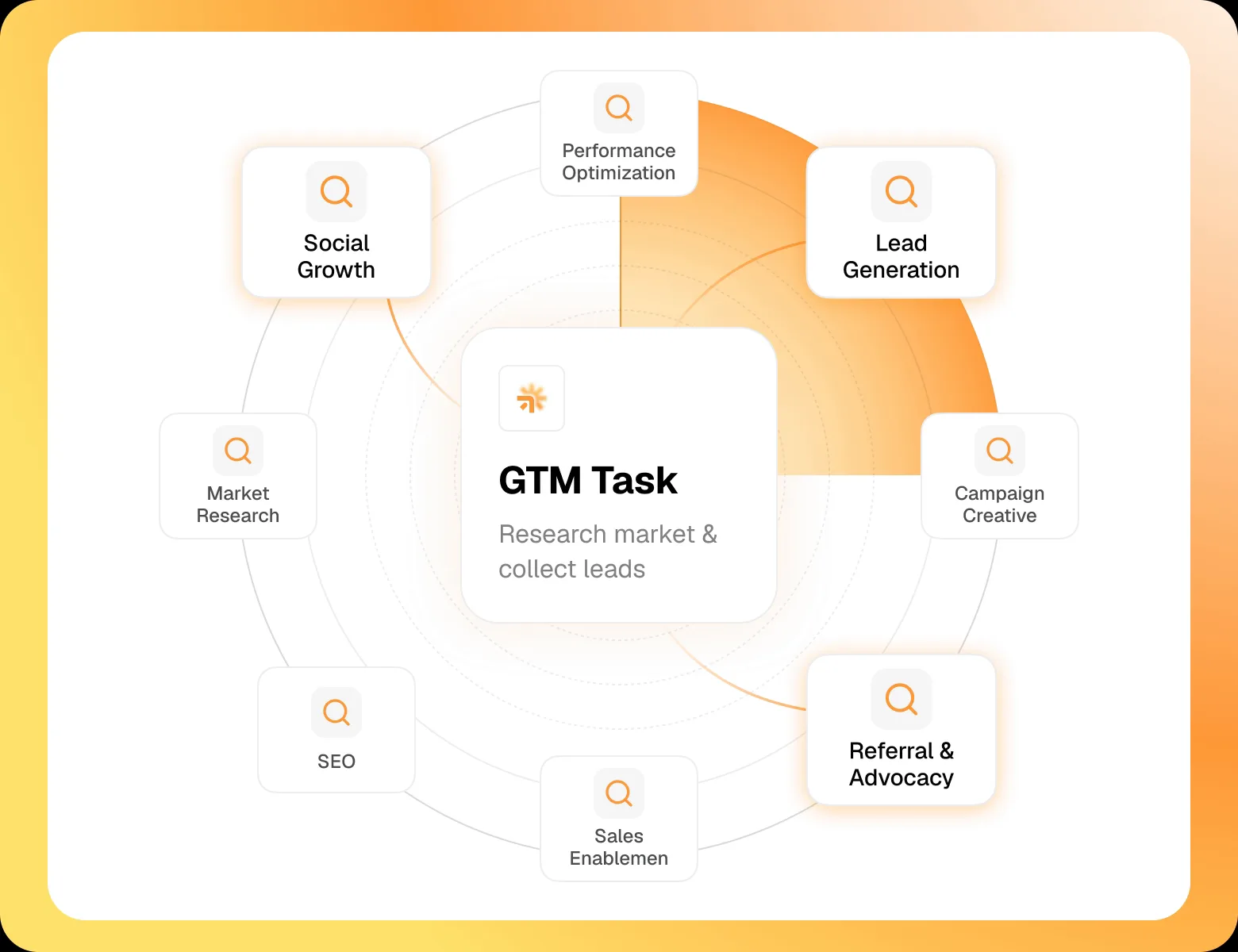
No tool expertise needed
Describe your GTM task. SpringBrand chooses the right APIs and plugins for your agent automatically.
Find tools for your task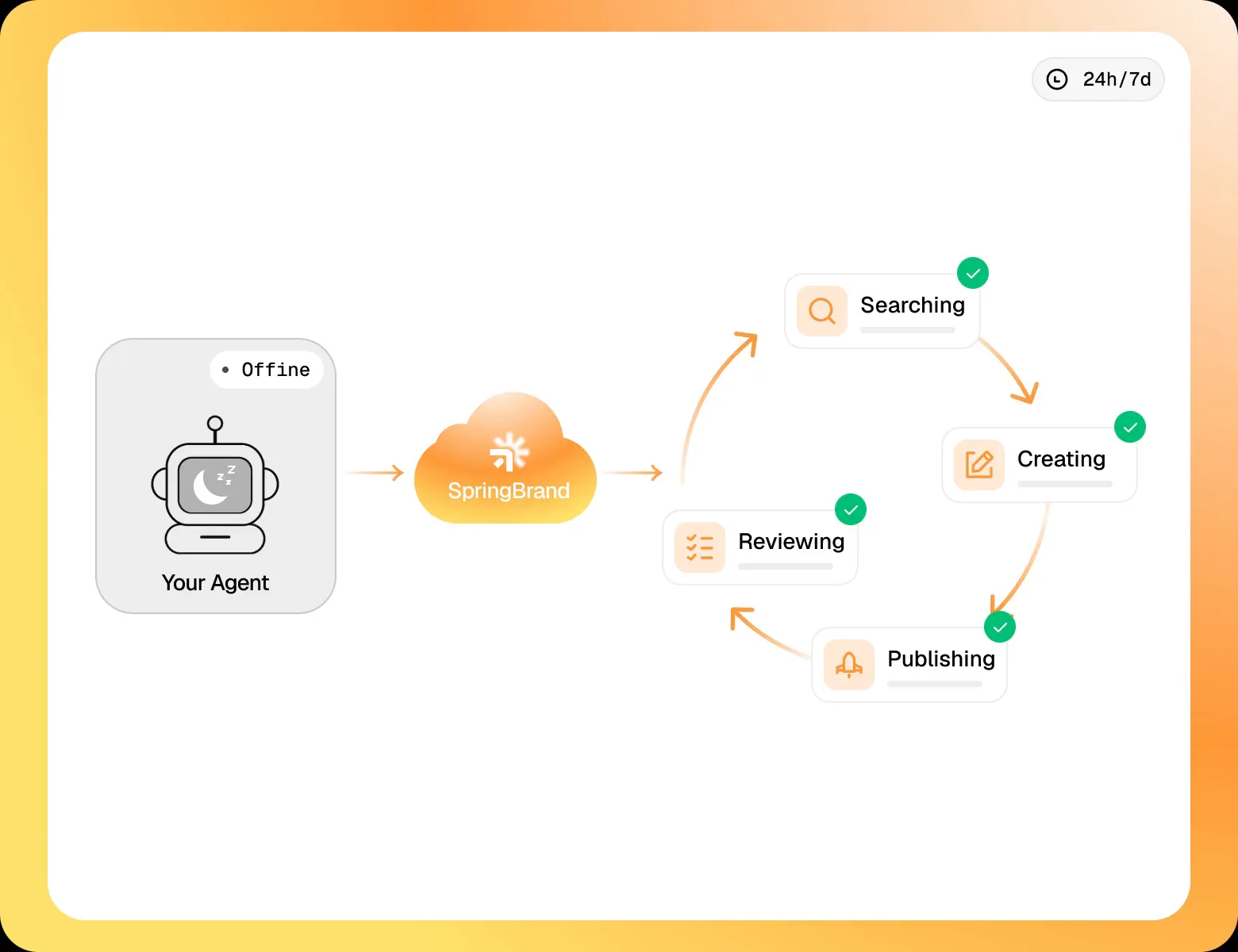
Run tasks 24/7
Connect your agent to SpringBrand to keep tasks running automatically, day and night.
Connect your agent