Zapier Review for a Lead Handoff Workflow
Written by
Alex
Springbrand Researcher

Reviewed by
Springbrand Audit Team
Editorial review team
Springbrand Audit Team supports editorial quality through source checking, clarity, and consistency across the blog.
Updated
Published
Zapier review for a lead-to-CRM handoff: assess setup, task usage, failure handling, and when a different workflow model fits.
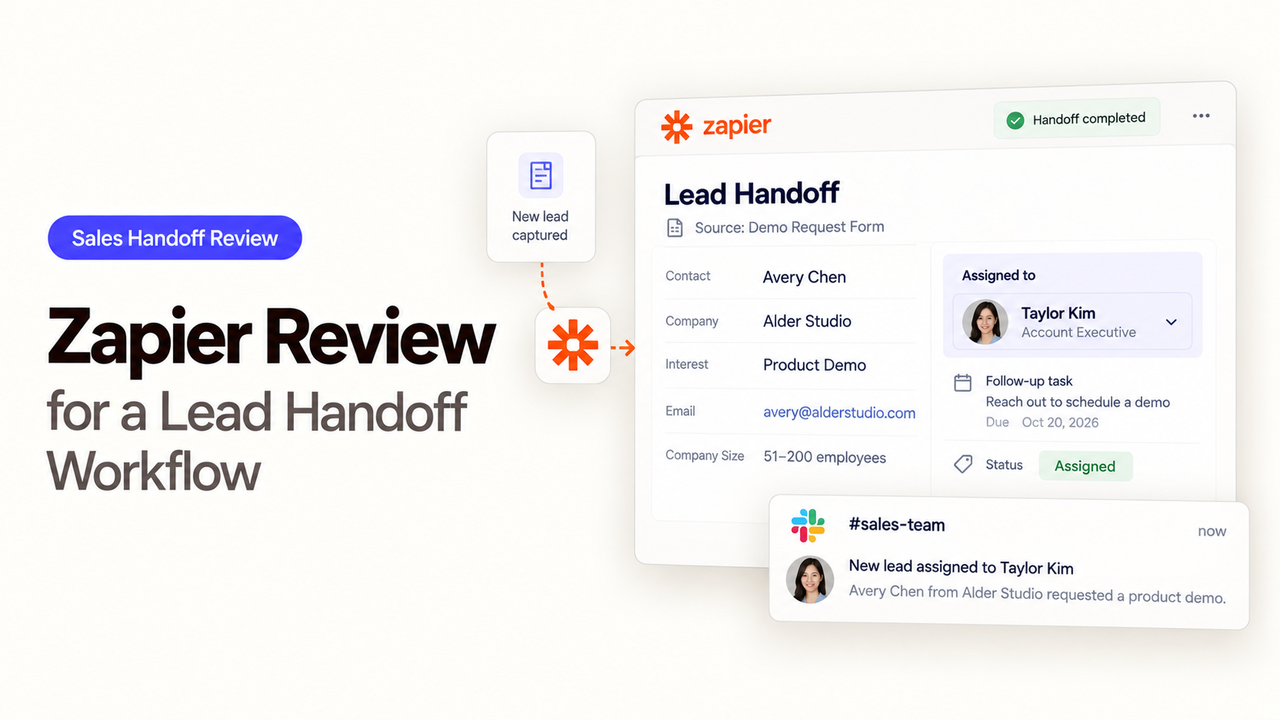
The form confirmation says a lead was submitted. The sales rep says nothing arrived. Between those two statements, a CRM record may have been created without an owner, or the CRM step may never have run. That gap is the reason to review the whole handoff before buying an automation plan.
This Zapier review follows one modest job: take a form submission, find or create the right CRM contact, and notify the assigned rep. Zapier can connect those apps with a Zap, but the decision depends on what the team can see and repair when one step goes wrong. The assessment below uses Zapier’s current help and pricing pages; the exact form, CRM, and notification app still determine which actions are available.

What Must the Lead Handoff Do?
The handoff should leave one usable CRM record and tell the right person what to do next. A notification without the record link is easy to lose. A new contact created beside an existing one gives the rep two versions of the same buyer.
Keep the submission ID, time, email address, company name, and source campaign. Decide which CRM field identifies an existing contact. Email may miss someone who submits a second address; a company name alone may be too weak for an account match. Define what happens when a search returns nothing, several plausible accounts, or a rep-corrected record.
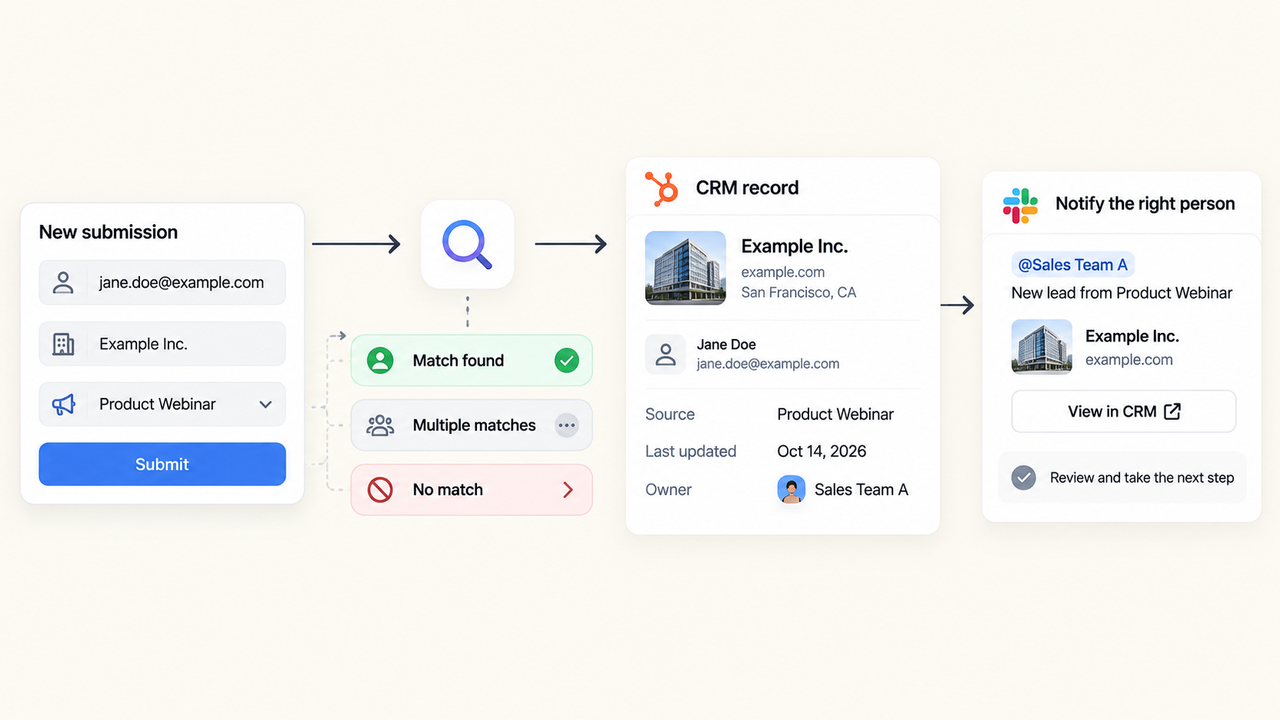
The notification should name the lead, link to the intended CRM record, and identify the owner or queue. Write down territory or account ownership rules before adding branches. A form answer should not silently override the existing CRM owner.
Lead state | CRM decision | What the rep should receive |
New, complete submission | Create a contact under the intended account or queue | Link to the created record and the form context |
Existing contact | Update only approved fields | Link to the existing record and note what changed |
Weak account match or conflicting owner | Hold the write for review | A request to resolve the match, not a “new lead” alert |
CRM write fails or times out | Check the target record before retrying | An exception alert with the submission ID |
This is the pass condition for lead capture automation. A green Zap run alone cannot prove the contact landed under the right account or that the notification reached the responsible rep.
How Would a Team Build the Handoff in Zapier?
Use the form submission as the trigger, then search the CRM before choosing a create or update action. Zapier’s search-action guidance explains how an existing record can supply an ID to later steps. Some app searches offer “create if not found,” but that shortcut is risky when a missing match should receive a human check. Inspect the selected CRM app’s exact search fields and create/update actions in the editor.
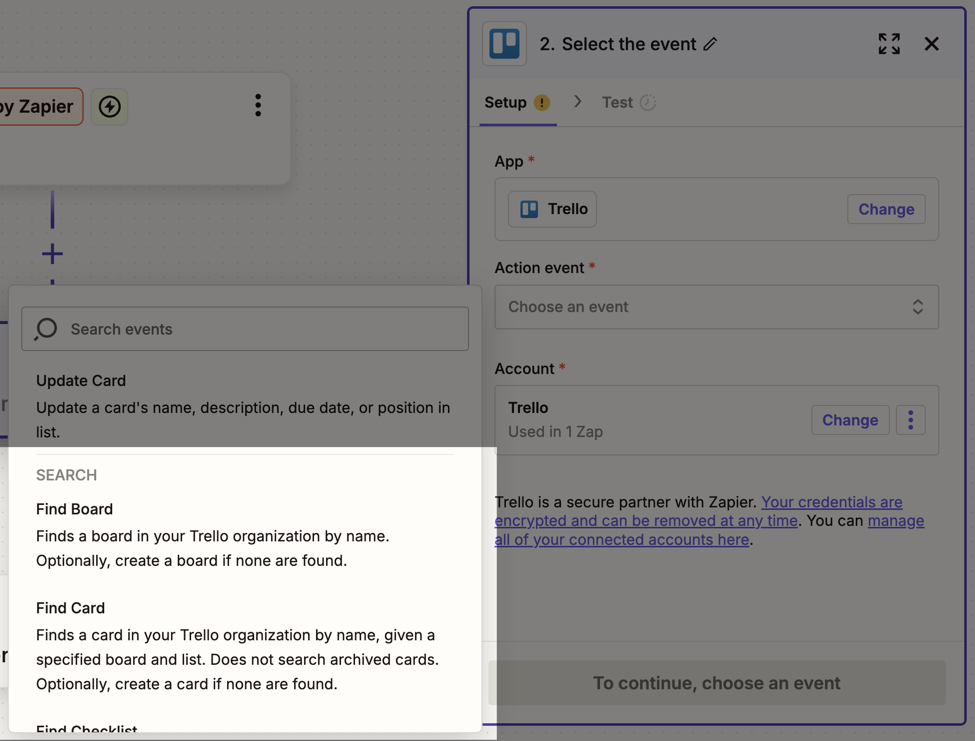
Map the form fields deliberately. Preserve the submission ID in a CRM note or other permitted field so an operator can find the original request. Keep blank form values from replacing better CRM data. If the CRM action returns a record ID, use that ID in the message rather than rebuilding a CRM link from the lead’s name. A short read-after-write check is useful when the CRM connector supports it; otherwise, include the returned ID and confirm the record directly during the pilot.
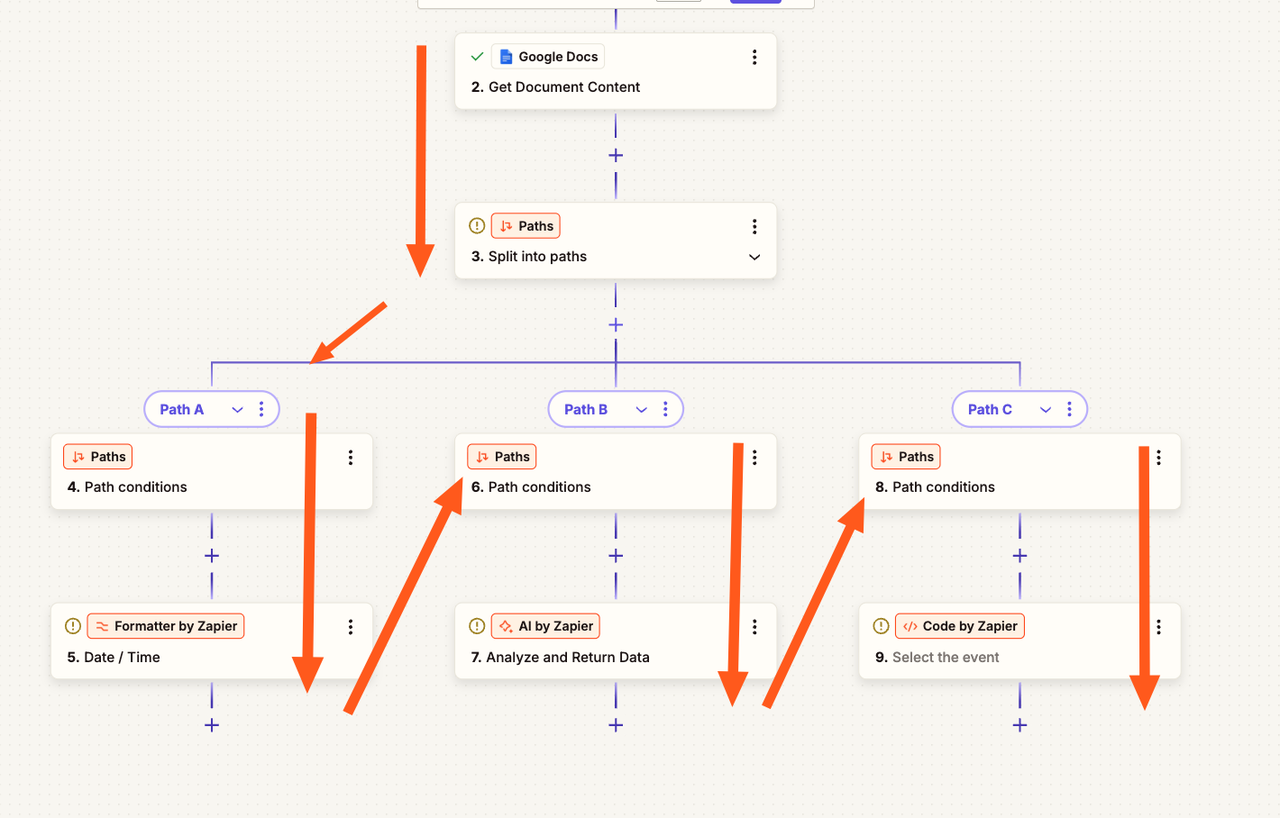
For a single accepted route, a Filter can stop incomplete submissions before any CRM action. For different outcomes, Paths can send “existing,” “new,” and “needs review” records to different steps. Zapier’s Paths guide says branches run in sequence, and actions cannot simply be joined after the split. That matters here: copying the same notification into several branches gives the team several places to maintain it. If the assignment logic starts to sprawl, simplify the CRM rule or move the shared action into a separate workflow only after checking the added work.
Before publishing, try a clean contact, a repeat submission, a missing company, and an existing customer. Inspect the record and the rep’s message for each.
What Should Be Checked After Each Run?
Check the CRM result and the rep notification together. Zapier’s Zap history shows run status, step details, and the Zap version used. It helps locate an error, but a successful step may still have written a value the team did not intend. Compare the target CRM record with the form submission before marking the lead handed off.
The hard case is a CRM timeout. The request may have succeeded even when Zapier did not receive a response. Search the CRM by the submission’s stable key or the intended contact ID before replaying. If the record exists, finish the missing notification without creating the contact again. If it does not, resolve the connection or field error and replay the failed action. Keep a short exception log with submission ID, CRM ID if known, run link, and resolution so the next operator can tell what happened.
Zapier supports manual replay of errored runs and paid-plan Autoreplay. Those controls can recover temporary failures. They do not decide whether a second CRM write is safe. Replaying an entire Zap executes earlier successful steps again, so check the CRM state and duplicate rule first. If task limits hold a run, the owner must restore capacity and release it. The next form submission will not clear the backlog.
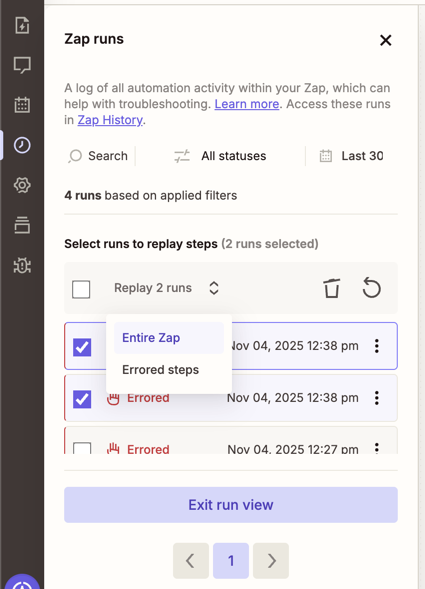
Assign someone to review errors and reconcile the CRM by submission ID. Add a backup operator as volume rises. A Zap can be “on” while missed leads accumulate outside anyone’s queue.
Where Can Task Usage and Branching Change the Decision?
Task usage follows successful actions, not the number of Zaps. Zapier’s task accounting guide says triggers, Filters, and Paths do not consume tasks; successful app actions do. A CRM search may count depending on its setting, and a successful create/update and rep notification each add usage. Failed or skipped actions do not count, while a successful action repeated by an entire-run replay counts again.
Estimate costs by branch. For 100 monthly forms, do not multiply all 100 by every action on the canvas. Count successful searches, writes, notifications, retries, and review alerts on the routes that run. Zapier lists special rates for some products, so a dedicated routing step may cost more than a standard action.
The current pricing matrix puts multi-step Zaps and team collaboration on different tiers. Check the live plan before buying for filters, branching, Autoreplay, shared connections, and the expected monthly task allowance. The Free plan’s two-step limit is enough to observe a form-to-one-action transfer, but it cannot represent this complete search–write–notify handoff. As of October 16, 2026, Zapier’s plan pages place shared Zaps and app connections in Team; verify the intended seats and permissions when procurement starts.
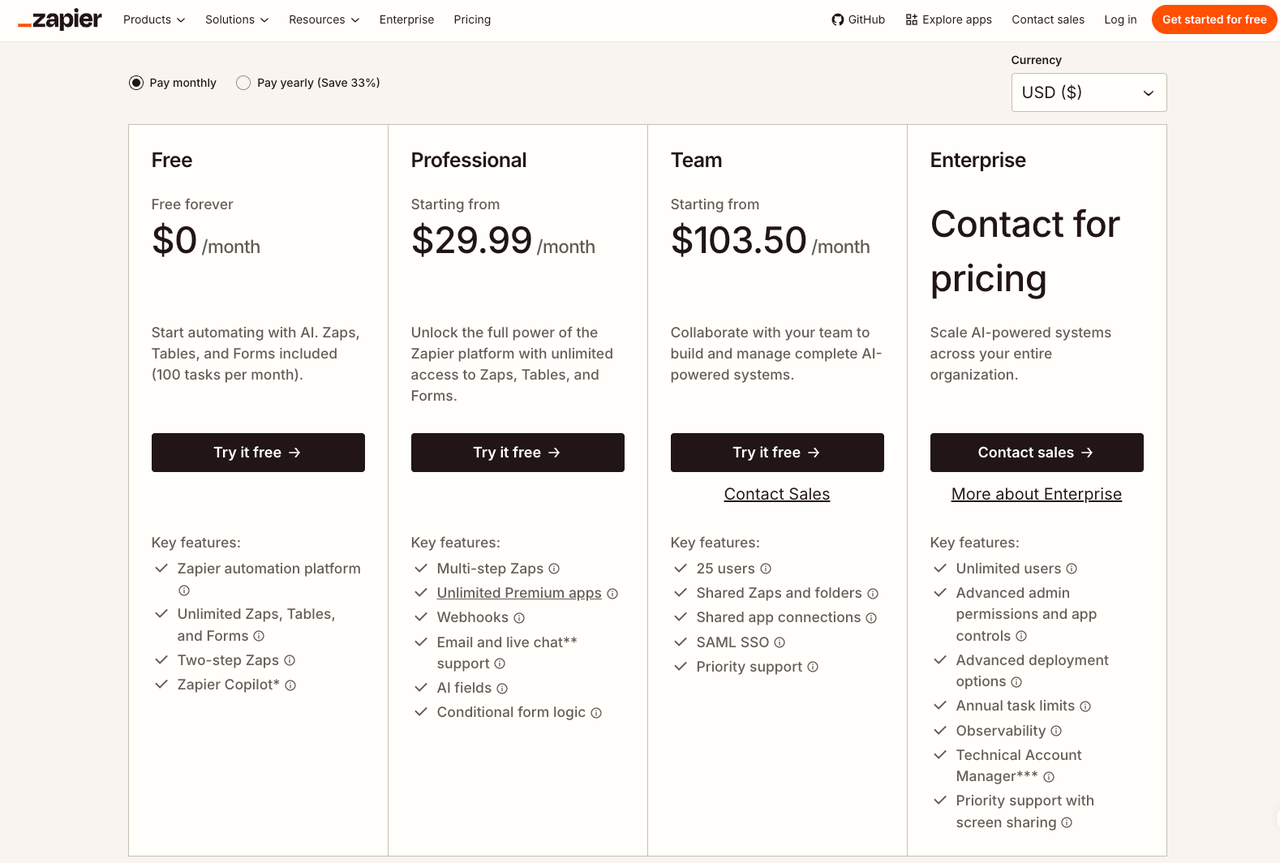
Each added path also needs maintenance when the form or CRM changes. A low task bill matters little if duplicate contacts enter the sales queue each week.
Who Should Choose Zapier for This Workflow?
Choose Zapier when the form and CRM expose the needed actions, lead rules are short enough to read in one Zap, and someone can monitor exceptions. A small sales team with a predictable form, a stable contact key, and one notification channel can often keep the flow understandable. The visual editor and run history make it practical to follow a submission through the steps.
Keep the write in the CRM or another controlled process when a match requires judgment on most leads, or when a rejected lead must wait days for approval. Also reconsider the design if several Zaps update the same contact from different sources. The problem then becomes which update wins and who can reverse it, not how quickly another connector can be added. A custom integration may suit strict transaction or audit requirements; a CRM-native workflow may be enough if all routing data already lives there.
For a wider agent-assisted sales task, explore SpringBrand’s sales capabilities against the same lead rules; confirm any CRM write and review step in your own setup.
FAQ
Can Zapier identify who created a Zap after ownership changes?
Yes, on Team and Enterprise plans through the audit log. It records zap.created and zap.owner_changed events with an actor and time. A Zap’s change history also lists creation and ownership changes. Check the available retention and your admin access before treating either view as a permanent personnel record.
Can Zapier export a Zap configuration for internal documentation?
Yes, on Team and Enterprise plans. The JSON export can preserve a configuration for review or backup; a Zap owner can also export a single Zap from the editor. Store it with the field map and owner rules. Imported Zaps still need their app connections tested or reconnected, so the file is not proof of a working handoff.
Can Zapier transfer a Zap to another workspace after an owner leaves?
In an Enterprise organization, Zaps can be copied across workspaces, but copying is different from transferring the departing person’s ownership. Zapier’s asset-copy guidance says copied assets may inherit new permissions and related assets are not automatically included. For Team or Enterprise offboarding, assign the Zap and its app connections to another user, then test the destination workflow. Free and Professional accounts have different recovery limits if the owner has already left.
Can a teammate inspect a Zap without editing it?
There is no general Zap Viewer role. Zapier’s role guide limits that asset role to Canvas, Tables, and Agents. A teammate may view a published Zap or a shared asset according to their account access, but do not treat this as a dedicated read-only review permission. Use an exported diagram or documented configuration when the reviewer must not have edit access, and confirm what run data the chosen sharing route exposes.
How are credentials handled when a workflow owner leaves?
Transfer or replace the app connections as part of offboarding, then test the form, CRM, and notification steps. Zapier’s connection controls let Team and Enterprise accounts change connection ownership; this does not change the account authenticated at the CRM. If that person’s CRM account is disabled, reconnect with an approved service account or another authorized account. Zapier’s offboarding guidance warns that removing access at the connected app can invalidate a retained connection.
Conclusion
Zapier fits a lead handoff with a few visible decisions: recognize the submission, find the contact, write approved fields, and tell the rep. The purchase test is whether the team can reconcile a duplicate and a timed-out write without losing or duplicating a lead. If that takes more judgment and recovery work than the small team can own, keep the CRM action under a tighter process until the rules are clear.
Explore SpringBrand
Turn ideas into working workflows
Connect agents, APIs and tools in one workspace. Start with a task you want to get done.
Get started free
One account. 10,000+ APIs & capabilities
Give your agent APIs and plugins without separate keys or integrations for every provider.
Explore APIs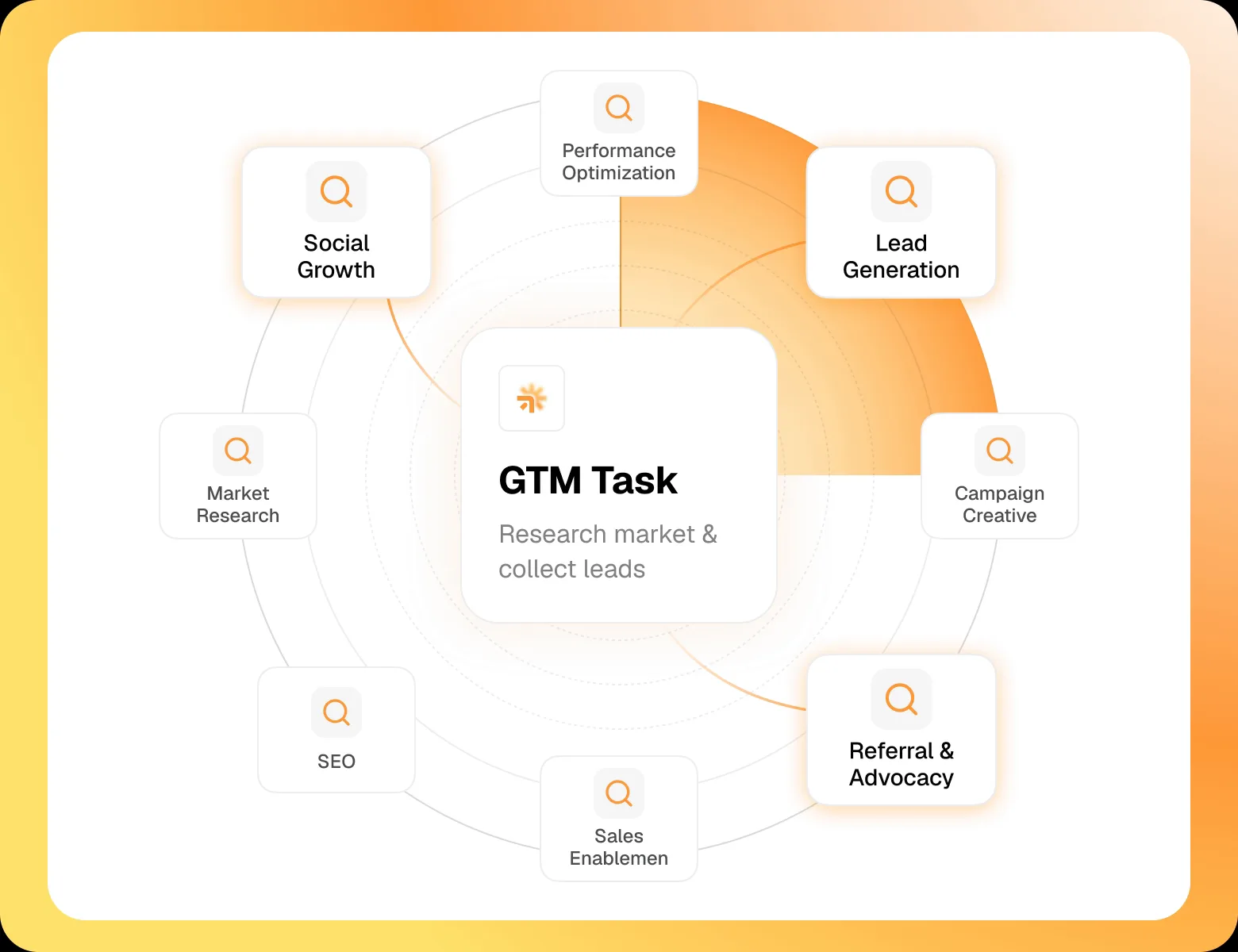
No tool expertise needed
Describe your GTM task. SpringBrand chooses the right APIs and plugins for your agent automatically.
Find tools for your task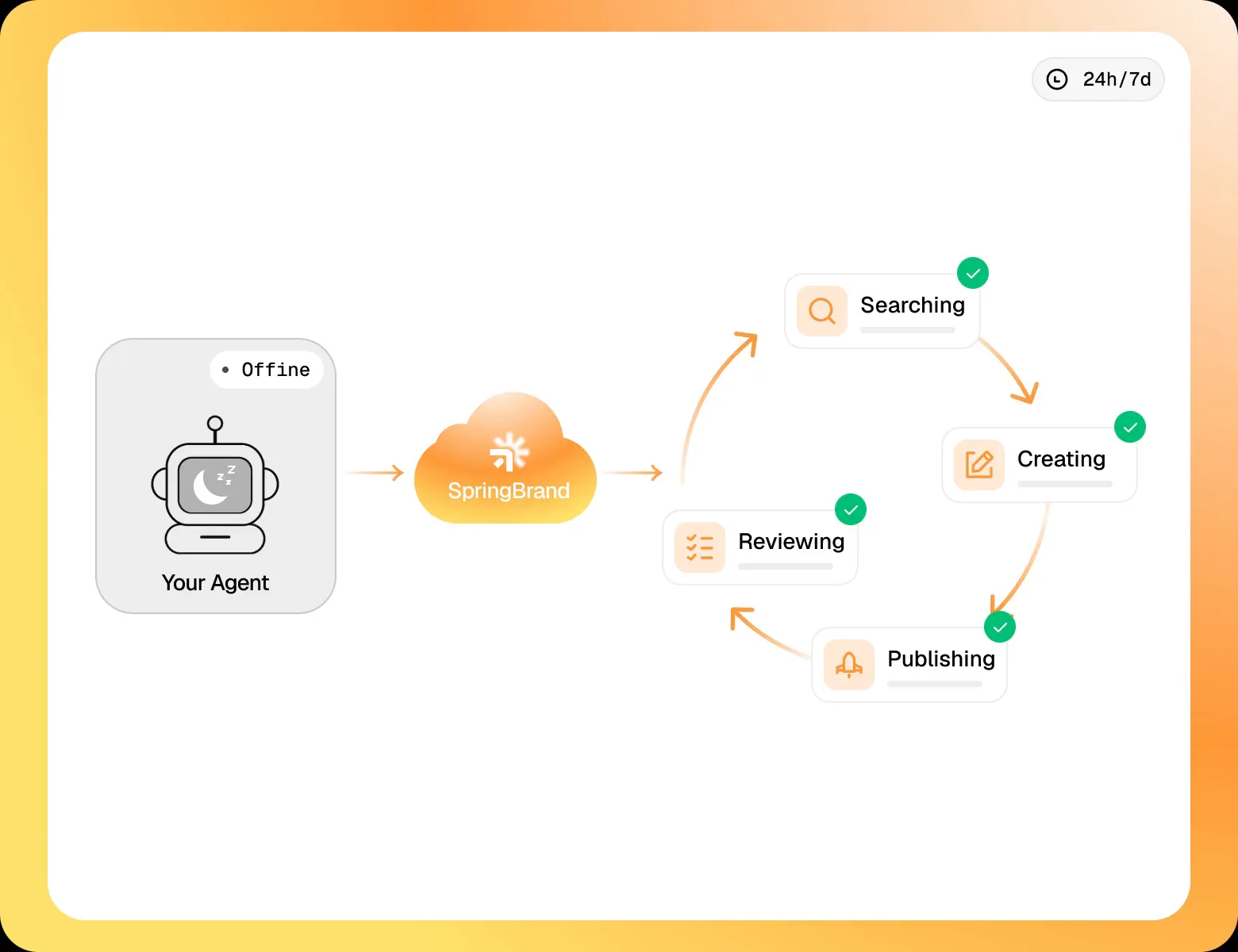
Run tasks 24/7
Connect your agent to SpringBrand to keep tasks running automatically, day and night.
Connect your agent