Workflow Diagram Examples for Small Business Teams

Written by
Springbrand Editor Team
Editorial team
Springbrand Editor Team creates and maintains blog guides on AI tools, automation, marketing, and agent workflows.

Reviewed by
Springbrand Audit Team
Editorial review team
Springbrand Audit Team supports editorial quality through source checking, clarity, and consistency across the blog.
Updated
Published
Workflow diagram examples show small teams how to map triggers, decisions, owners, and handoffs before changing or automating a process.
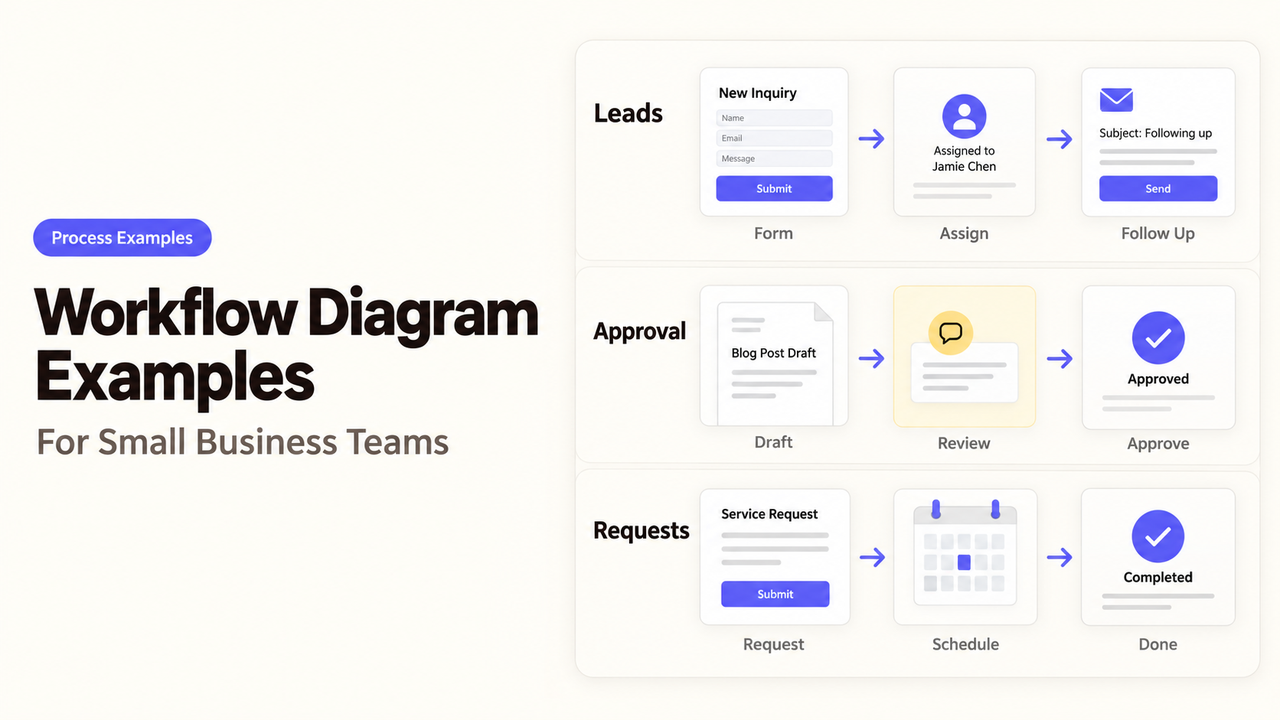
A customer request may look simple on a whiteboard: receive it, assign it, reply. The confusion begins when nobody can say who decides whether it belongs to sales or support. A useful workflow diagram makes that decision visible before a team buys software to enforce it.
Think of a workflow as the route a job follows. Something starts it, decisions change its direction, and a completed result ends it. Drawing the route exposes differences between actual and assumed practice.
I’m Alex. Before moving a diagram into a Workflow Builder, I’d make sure every box has an actor, an input, and a result someone can verify.
This guide explains three diagram formats, the core symbols, and three workflow diagram examples a small team can adapt. It also shows how to turn the finished map into Agent and Plugin steps.
Choose the Right Diagram Format
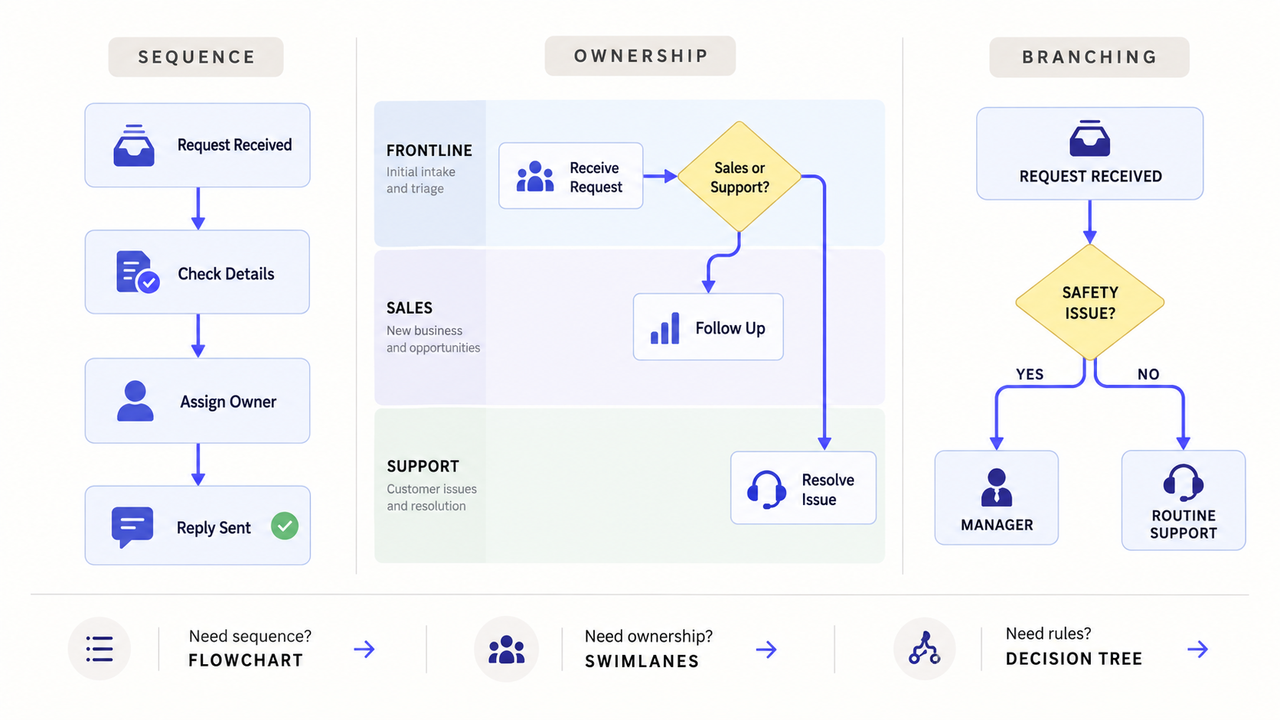
Begin with the question the diagram must answer. A flowchart explains sequence, swimlanes expose ownership, and a decision tree clarifies branching rules.
Use a Basic Flowchart for Sequential Work
A basic workflow chart works when most tasks happen in order. A client welcome process might move from signed agreement to customer folder and welcome email.
Put one action in each box. Add decisions only where the route changes. Use swimlanes if ownership remains unclear.
Use Swimlanes to Show Ownership
Swimlanes divide the diagram by role, department, or system. Each step sits in its owner’s lane; crossing connectors show handoffs.
This format reveals stalled handoffs and ownerless approvals. Use role names such as “Sales Manager” so the map survives staffing changes.
Use a Decision Tree for Branching Rules
A decision tree fits work in which one answer changes the route. A safety issue and a standard product question should not follow the same support path.
Write decisions as answerable questions. “Is this urgent?” is vague; “Does the message mention an immediate safety risk?” gives the reviewer a clearer rule.
Decision trees can sit inside larger flowcharts. Label every route with its condition.
Read the Core Workflow Symbols
Most diagrams need few shapes. IBM’s overview of workflow diagrams describes the common convention: ovals mark endpoints, rectangles show actions, diamonds show decisions, and arrows show direction.
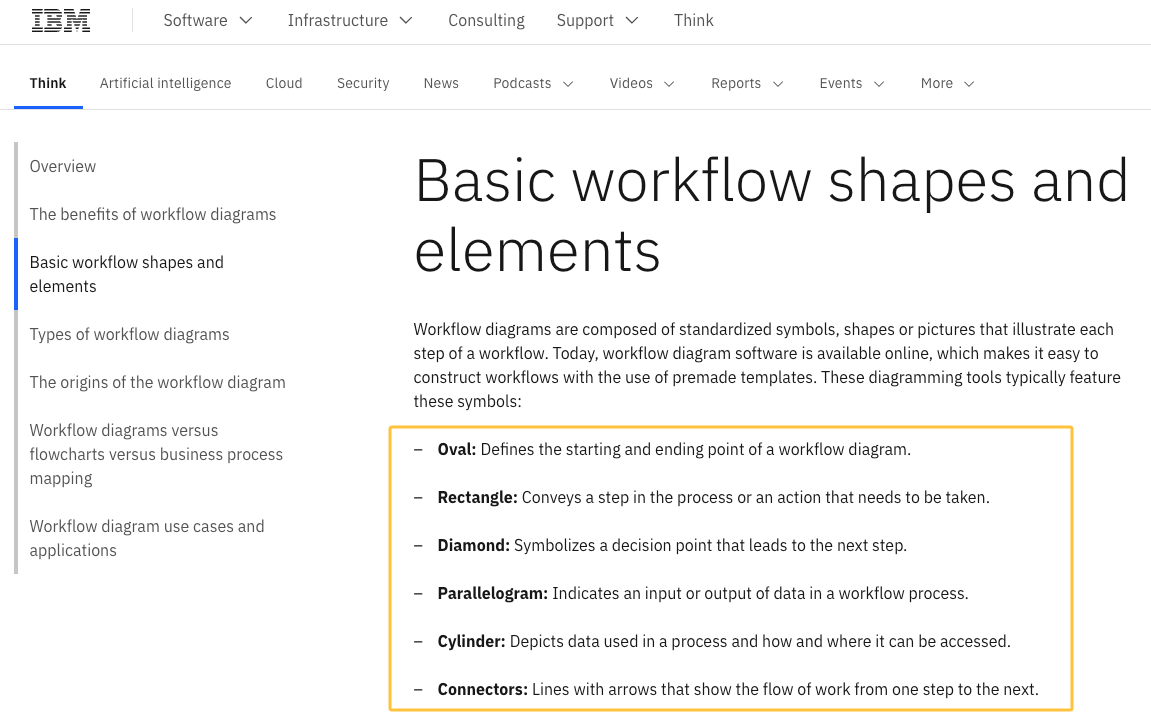
These are conventions. Add a legend when your team gives a shape a special meaning.
Start and End Points
Give the workflow an observable trigger and defined finish. “New form submitted” can start it; “Sales follow-up task assigned” can end it. “Lead handled” cannot be verified.
A process may have several valid endings. Show each one.
Actions, Decisions, and Connectors
Use rectangles for work someone or something performs. Write labels as a verb plus an object: “Check required fields” is easier to follow than “Form review.”
Use diamonds for questions and label outgoing arrows. If lines tangle, use a labeled connector or smaller subflow.
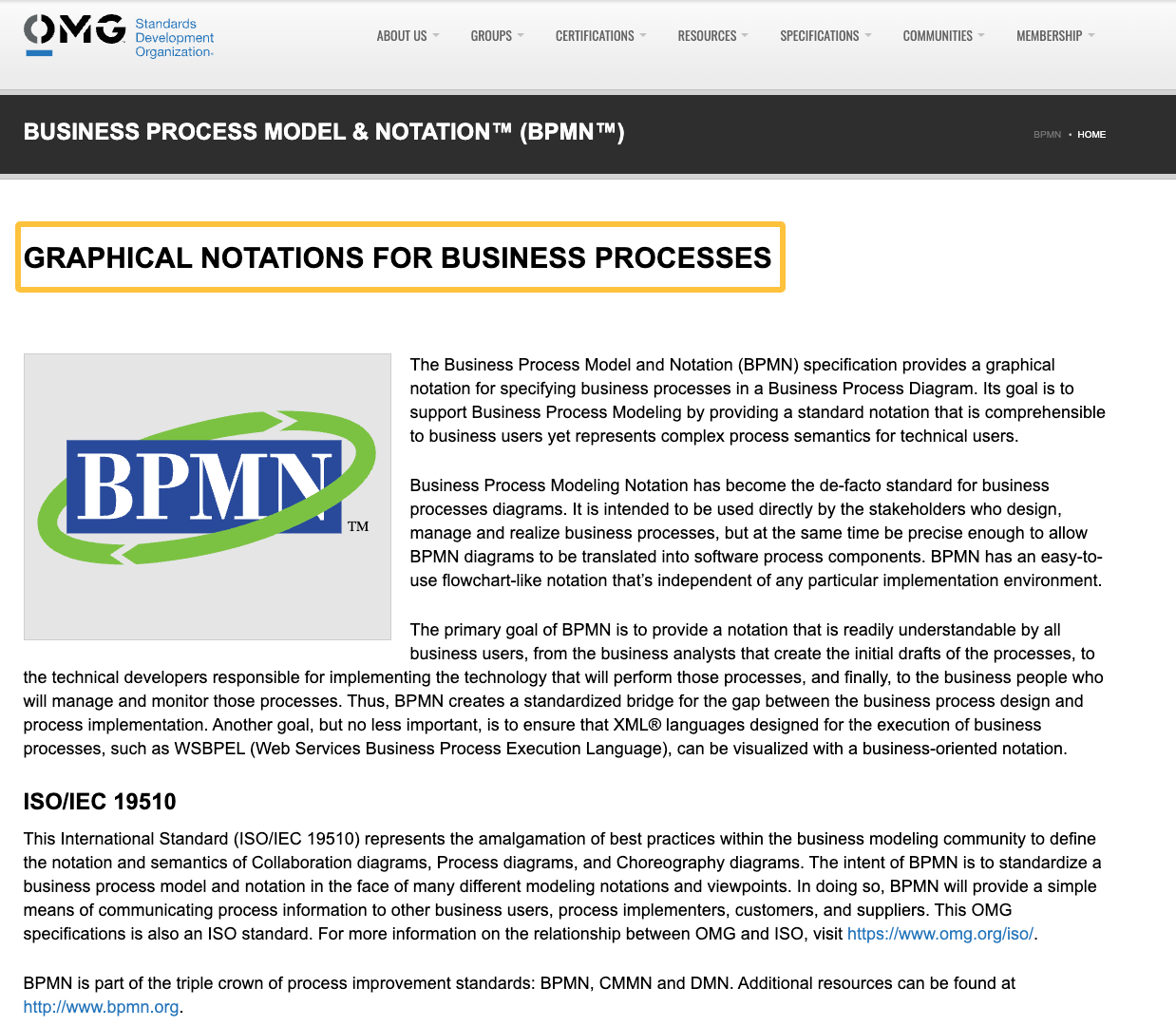
Do not casually mix flowchart symbols with formal BPMN notation. The Object Management Group’s BPMN standard supports richer events, messages, gateways, and process semantics. That precision can burden a short team discussion.
Workflow Diagram Examples
These examples keep the logic visible without requiring a particular drawing tool. Add swimlanes for the named owners.
Lead Intake and Sales Handoff
Start with “Website inquiry received.” Marketing checks the required fields, then asks: “Is the request within our service area?”
- Yes: Marketing updates the CRM record. Sales receives a follow-up task with an owner and due date.
- No: Marketing sends the approved out-of-area response and records the reason.
- Unclear: The inquiry moves to a named person for manual review.
Creating a CRM record is not the same as assigning someone to act.
Content Review and Approval
Begin with “Draft submitted for review.” The editor checks the brief, claims, links, and required assets. The decision is “Does the draft meet the editorial checklist?”
If not, it returns to the writer with one set of notes. If it does, the subject owner reviews it. Approval moves the item to scheduling; rejection adds an issue and review date.
Show version ownership so an old attachment cannot replace the corrected draft.
Customer Issue Escalation
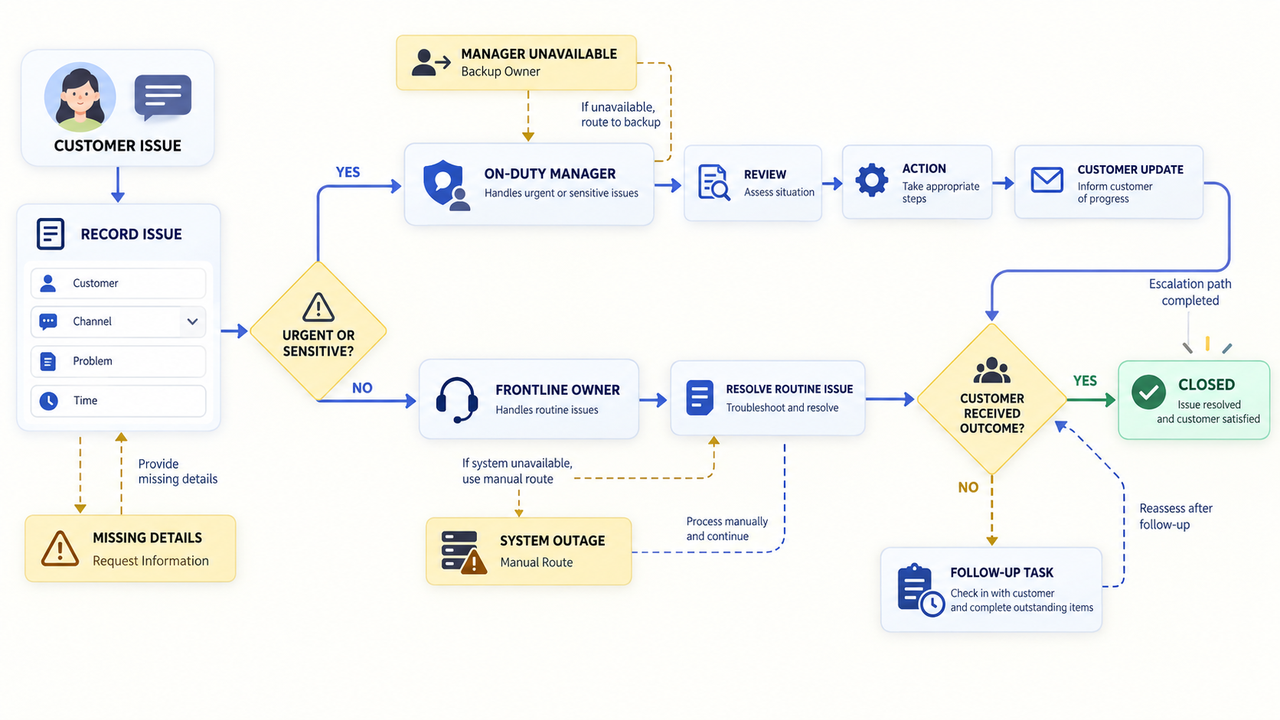
Start with “Customer issue received.” The frontline owner records the customer, channel, and problem. The first decision asks whether the issue matches a defined urgent or sensitive category.
An urgent issue goes to the on-duty manager. A routine issue stays with the frontline owner. Before closing either path, ask: “Has the customer received the outcome?” If not, create a follow-up task.
Add an exception route for missing details, an unavailable manager, or a system outage.
Create a Diagram With the People Who Do the Work
Include employees who receive inputs, make decisions, and repair exceptions. A recent case may reveal workarounds missing from the official process.
Define the Start, Finish, and Desired Outcome
Choose an observable trigger. Define what “done” leaves behind: a sent reply, approved file, assigned task, or closed record.
Set the boundary early. A lead-intake diagram can end at sales assignment without mapping the entire sales cycle.
Map Steps, Decisions, Exceptions, and Owners
Ask what happens next, who does it, what they need, and what changes the route. Include a system only when it affects the work.
Map the current process first. If people describe different paths, mark the disagreement and test it against recent cases.
Validate the Diagram Before Automating
Walk through an ordinary case, a rejection, and a missing-input case. Each owner should know what arrives, what to do, and what proves completion.
Give the diagram to someone who did not create it. If they cannot predict the next step, fix the label, loop, or owner before implementation.
Turn the Diagram Into Agent and Plugin Steps
A finished map becomes useful to a Workflow Builder when each symbol can be translated into an executable role. Do not begin with the Agent. Begin with what the process already says must happen.
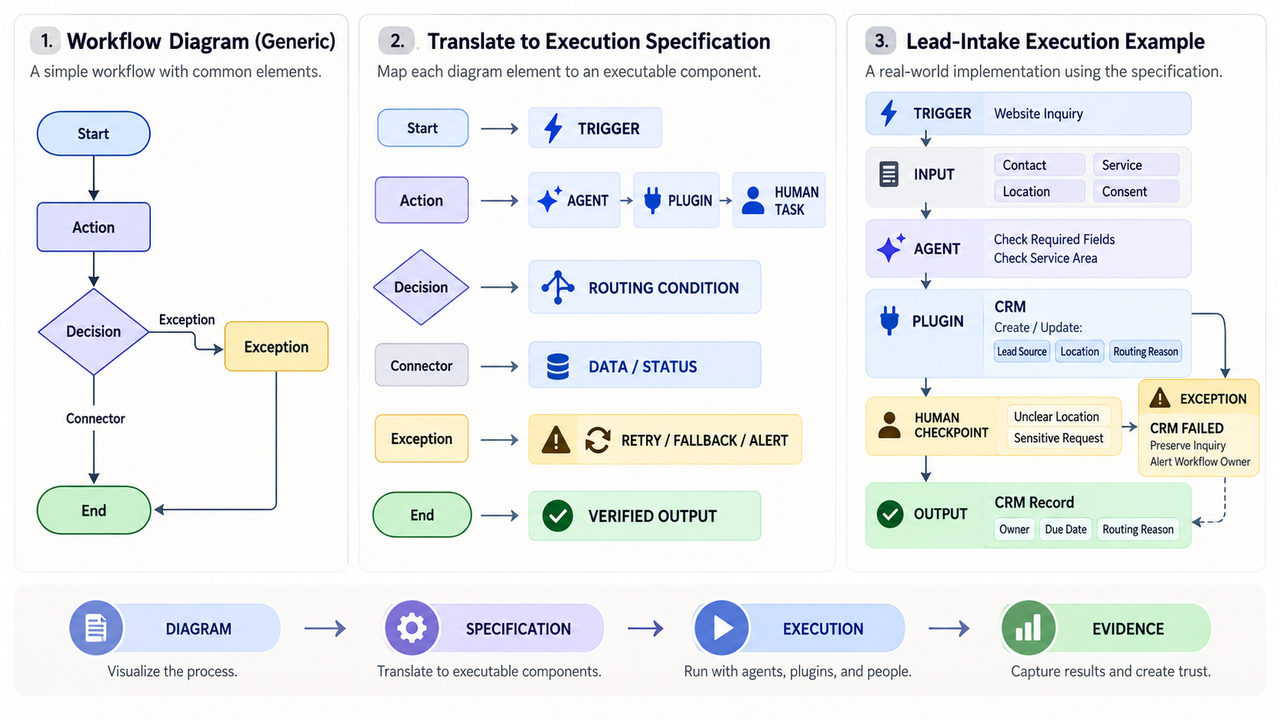
Diagram element | Workflow specification |
Start point | Trigger that begins a run |
Action box | Agent action, Plugin call, or human task |
Swimlane | Person, Agent, application, or team responsible |
Decision diamond | Routing condition with named outcomes |
Connector | Data or status passed to the next step |
Exception route | Retry, fallback, alert, or human escalation |
End point | Output or completed state that can be checked |
Add the required input and permission to every automated action. “Update CRM” is incomplete. State which record and fields may change, which Plugin or connected tool performs the action, and what happens if the update fails.
The lead-intake example can become this short execution brief:
- Trigger: A website inquiry arrives.
- Input: Contact details, requested service, location, and consent status.
- Agent action: Check the required fields and service-area rule.
- Plugin action: Create or update the approved CRM fields.
- Human checkpoint: Review unclear locations or sensitive requests.
- Output: A CRM record with an owner, due date, and routing reason.
- Exception: Preserve the inquiry and alert the workflow owner if the CRM action fails.
This translation does not prove the process should be automated. The related workflow automation guide helps determine whether the mapped work is stable and safe enough to run repeatedly.
SpringBrand’s current site presents it as an AI-native plugin marketplace rather than as the source of truth for your process map. Its current site presents agent-ready Plugins and capabilities that an Agent can use. Before connecting a live process, review the available Agent capabilities and confirm the required tool, permission, human checkpoint, and failure route.
FAQ
When should a team use BPMN instead of a simple flowchart?
Use BPMN when systems or organizations exchange events and messages, or implementers need standardized semantics. A basic flowchart is easier for a short internal routine.
Which file format keeps a workflow diagram editable across tools?
No format guarantees perfect cross-tool editing. Keep the native file plus an SVG or PDF. W3C defines SVG as an XML-based vector format, but another tool may not preserve proprietary metadata. Test one round-trip first.
How should version numbers and approval dates appear on a diagram?
Version control can stay simple. Put the owner and version on the page. Label unfinished diagrams as drafts; after approval, add the approver, date, and next review date. Use a consistent name such as lead-intake-v1.2-approved-2026-09-13.
Can process-mining software create diagrams from event logs?
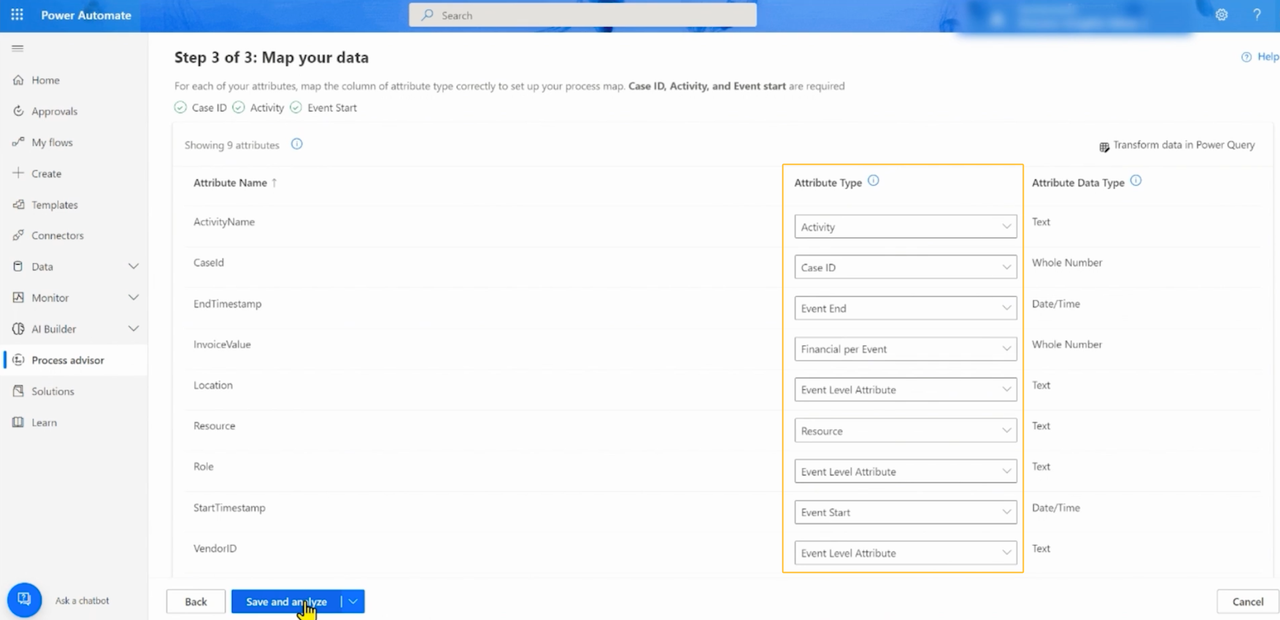
Yes, when records contain usable case IDs, activity names, and timestamps. Microsoft’s process-mining data guidance explains those fields. The map will miss calls, workarounds, and decisions the systems never logged.
How can workflow diagrams work for screen-reader users?
Do not rely on the image alone. Add an ordered list or table naming each step, owner, branch, and destination. Use concise alt text, then place the full text equivalent nearby. W3C’s guidance for complex information and tasks recommends explanations, tables, and step-by-step information as supplemental ways to present complex content, and includes flowcharts among the formats discussed.
Conclusion
A useful workflow diagram shows where work begins, what changes its route, who owns each handoff, and what proves the process is finished.
Choose the simplest format that answers the question and test it against real cases. Then translate each box into an Agent action, Plugin call, human checkpoint, or recorded output. Any step without a clear actor or verifiable result is not ready to enter a Workflow Builder.
Recommended Reads
Explore SpringBrand
Turn ideas into working workflows
Connect agents, APIs and tools in one workspace. Start with a task you want to get done.
Get started free
One account. 10,000+ APIs & capabilities
Give your agent APIs and plugins without separate keys or integrations for every provider.
Explore APIs
No tool expertise needed
Describe your GTM task. SpringBrand chooses the right APIs and plugins for your agent automatically.
Find tools for your task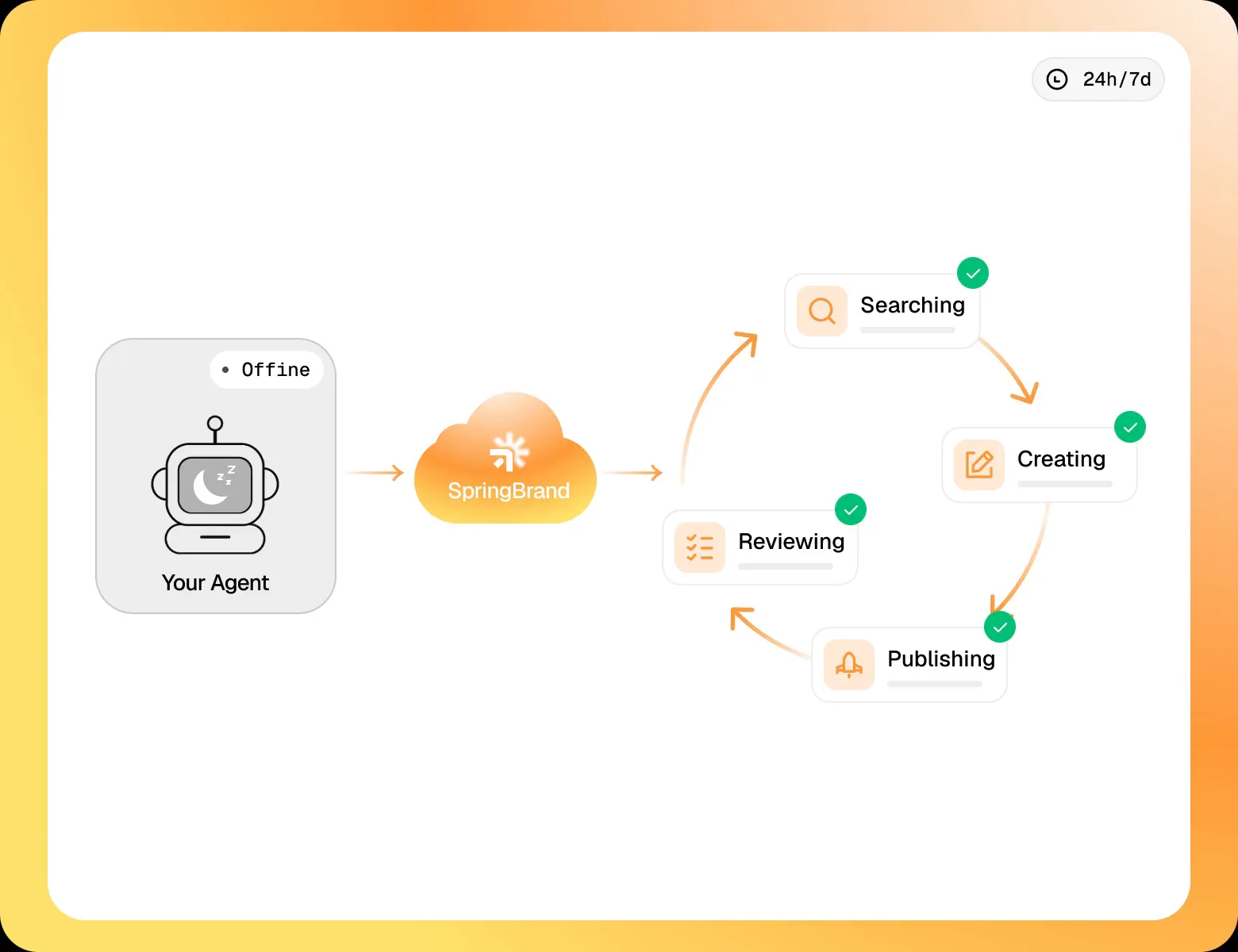
Run tasks 24/7
Connect your agent to SpringBrand to keep tasks running automatically, day and night.
Connect your agent