Document Workflow Automation for Small Teams
Document workflow automation helps small teams map approvals, choose tools, and decide when outside implementation support is worthwhile.
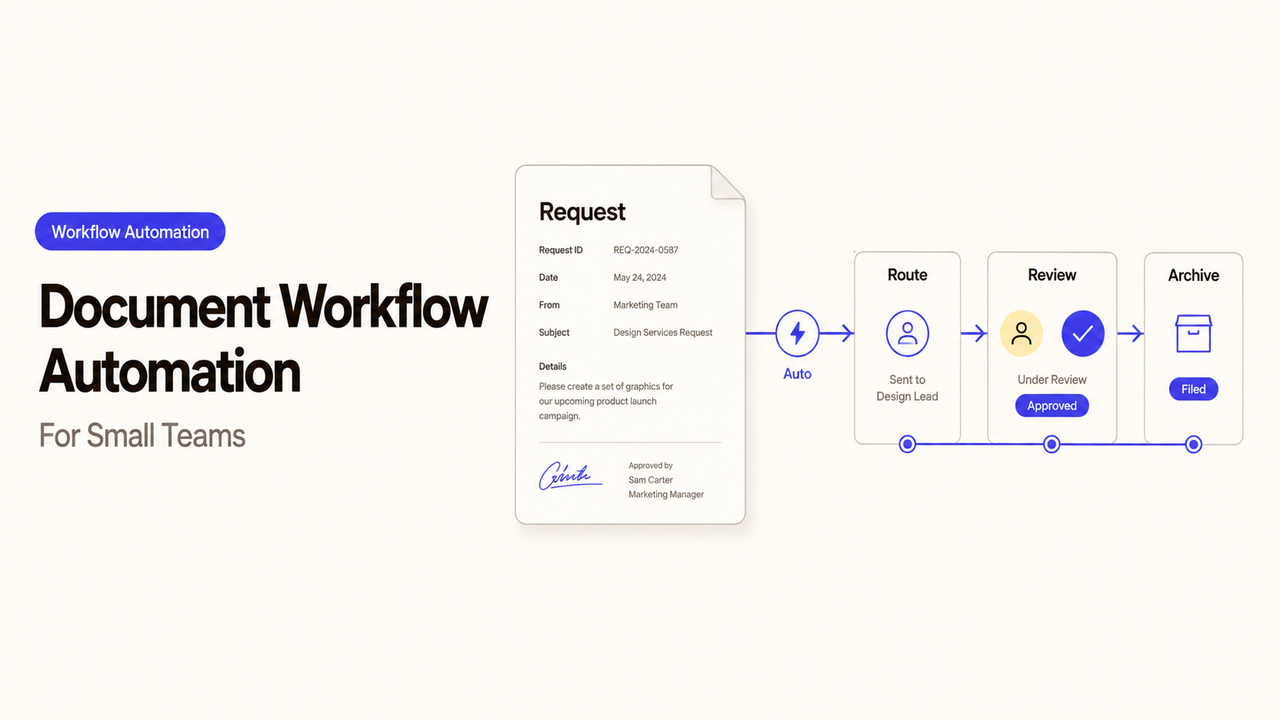
A useful document workflow should answer five questions before it sends a single notification. You need a clear trigger, a current file, a decision owner, a final record, and a plan for absent reviewers.
That is the foundation of document workflow automation. I’m Alex. We’ll build those answers in order, then decide whether your team can configure the workflow or needs outside support.
What Document Workflow Automation Covers
A document workflow starts with an event. Someone may submit a form, upload a file, change a status, or reach a deadline. The system then moves the work to the next person or tool.
A typical workflow might:
- pull the current template;
- send the document to the right reviewer;
- record an approval, rejection, or change request;
- notify the next owner;
- send an approved file for signature;
- save the final version; and
- update a CRM or project record.
That makes it broader than document generation. The workflow also controls routing, decisions, records, and handoffs.
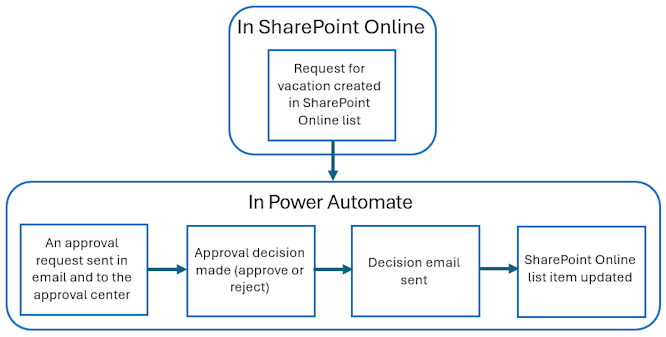
Microsoft’s current approval workflow documentation shows this basic sequence. A trigger starts the flow, an approver receives the request, and the response leads to another action.
Google Drive also offers file approvals and approved-version history. Access depends on the account edition, and edits may reset approvals under some settings. Check your platform’s current rules before designing the process around a feature.
Map the Current Document Process First
Choose one document and follow it from the first request to the final record. Talk to the people who do the work, not only the person who wrote the policy.
The real process may include private spreadsheets, forwarded attachments, or approval notes in chat. Put those workarounds on the map. Automation cannot replace a step that no one has acknowledged.
Use six fields to capture the current process:
| Field | Question |
|---|---|
Trigger | What starts the work? |
Input | Which file or information is required? |
Owner | Who is responsible now? |
Decision | What must that person check or approve? |
Record | Where is the decision saved? |
Exception | What happens when the usual path fails? |
Triggers, Owners, and Approval Steps
Name the event that starts the workflow. “A supplier invoice reaches the finance inbox” is specific enough to test. “Finance reviews invoices” is not.
Assign each step to a role whenever possible. A flow tied to one employee’s personal account may stop when that person leaves. The business still needs a named administrator, but routine staff changes should not break the process.
Next, define what each reviewer decides. One person may confirm the amount. Another may approve the purchase. A third may release payment. A single “approve” button should not hide three different responsibilities.
Also decide whether everyone must approve or whether one representative can act for a group. If reviews happen in order, write down that order.
Exceptions, Records, and Handoffs
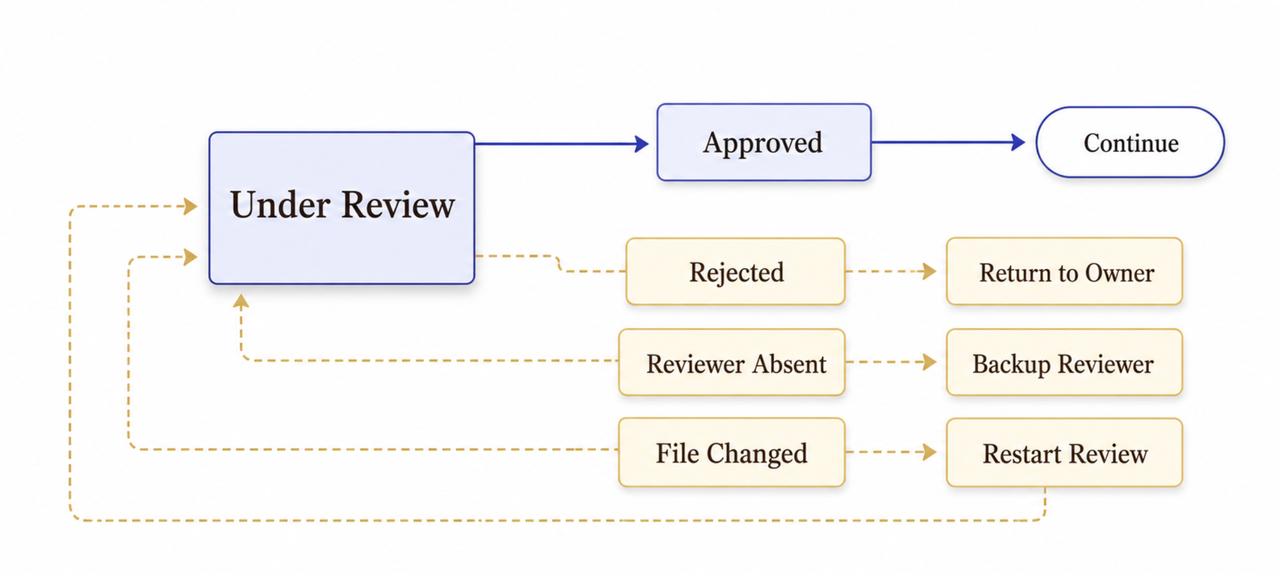
The normal path is usually easy to draw. Most problems appear when information is missing or someone changes the file during review.
Map what happens when a reviewer rejects the document, misses a deadline, or becomes unavailable. Include duplicate submissions, failed connections, and withdrawn requests. Each case needs an owner and a next step.
Keep the decision with the document it covers. The record should show the version, reviewer, date, response, and comments. An email that says “approved” is weak evidence when it does not identify the file.
Finally, follow the handoff. If an approved proposal moves to electronic signature, name the person who prepares it. If the signed copy moves to storage, specify the folder, file name, access level, and record owner.
Choose the First Workflow to Automate
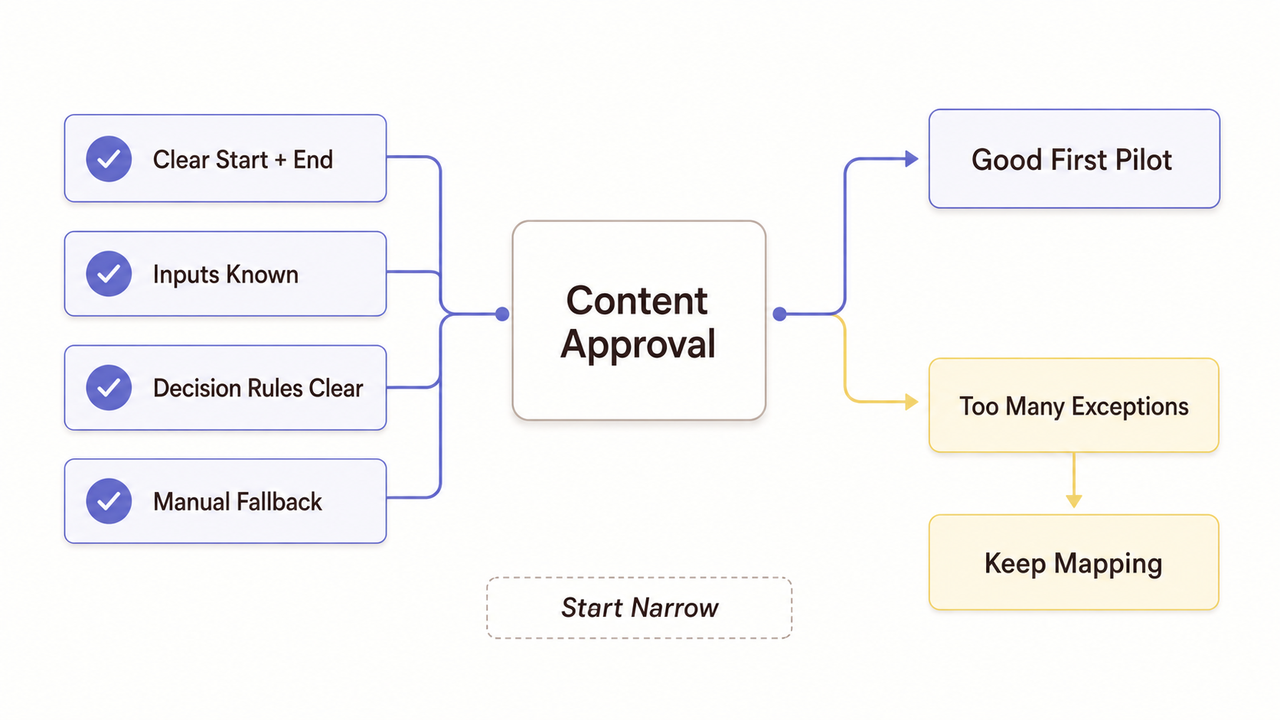
Start with a process that happens often and follows rules the team already understands. It should be narrow enough to test without disrupting critical work.
A routine internal approval or standard content review may be a better pilot than a sensitive contract. The most frustrating process is not always the best first choice. Complex exceptions can bury the team before it learns how to maintain the workflow.
Ask five questions:
- Can the team agree when the process starts and ends?
- Does everyone know which inputs are required?
- Can each approval decision be stated in plain language?
- Is there a manual fallback?
- Can the workflow be tested without affecting a live obligation?
If several answers are unclear, keep mapping. Document routing automation works better after the underlying decisions are settled.
Compare DIY Tools and Implementation Support
An internal build may work when the process uses familiar systems and has only one or two approval stages. Someone on the team must still maintain permissions, test changes, and investigate failed runs.
Outside support becomes more useful when several systems are involved. It may also help with complex permissions, connector behavior, electronic signatures, or migration from an older process.
The provider should explain who will map the workflow, configure the connections, and test the exceptions. The proposal should also cover documentation, training, and handoff. Tool familiarity alone does not prove that the provider can manage the process.
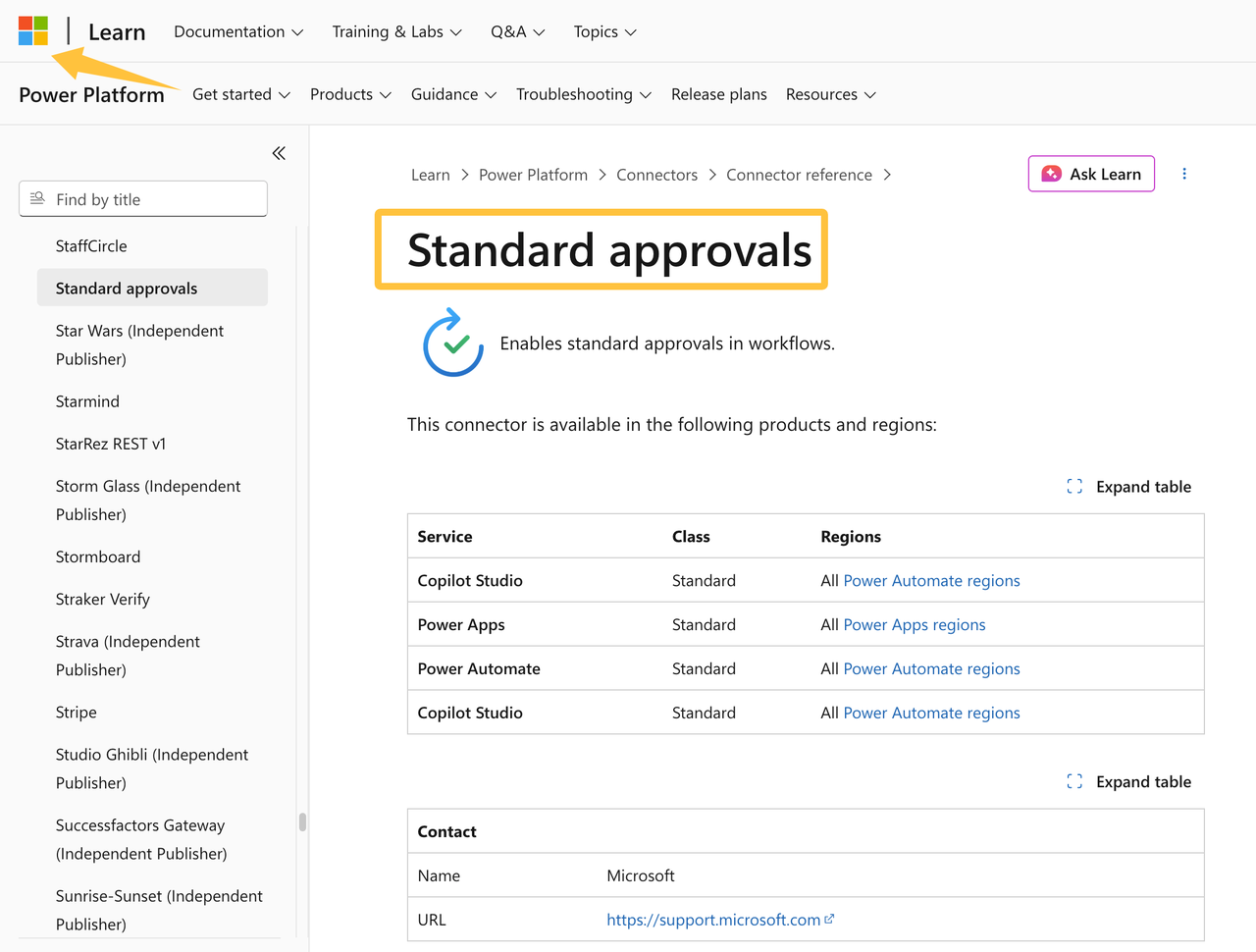
Check current product limits before approving the build. Microsoft, for example, publishes approval connector limits and deprecated actions. An old tutorial may describe an action that should no longer be used.
Security belongs in the comparison when a provider can reach company files or systems. CISA’s vendor-assessment guidance for small businesses includes questions for cloud tools and service providers with system access.
Plan a Pilot and Acceptance Checks
Limit the pilot to one document type and a small group of users. Keep the manual route available until the automated version passes review.
Test the normal route first. Then test the moments most likely to cause trouble:
- missing information;
- a rejected request;
- a changed document;
- an absent approver;
- an unauthorized user;
- a failed connection; and
- an incorrect destination.
For each test, record the input and expected result. Add the actual result, review date, and unresolved problem. This makes the pilot easier to repeat after a platform or process change.
Before launch, confirm that users receive the correct file and decision options. Check that the final document reaches the right location. The team should also know how to find a failed run and switch to the manual process.
A smooth demonstration is not enough. The process owner must review the test record and approve the move to live use.
Security, Access, and Retention Limits
Automation can expose a document to new accounts, integrations, notifications, and logs. List those access points before the pilot starts.
Use individual accounts and give each person only the access required for the job. Remove that access when an employee or provider leaves. Protect administrative accounts with the strongest authentication the platform supports.
Decide what may appear in email alerts and workflow logs. A notification rarely needs to repeat every detail from a financial, health, employee, or customer document.
Retention needs an owner as well. Keep required records, but do not let temporary copies and failed submissions collect forever. The FTC’s small-business cybersecurity guidance recommends need-to-know access, multifactor authentication, and keeping only necessary data.
Rules for signatures, privacy, and record retention vary by document and location. Check the requirements that apply to your business before launch. This article offers general workflow guidance, not legal or compliance advice.
How SpringBrand Fits This Workflow
SpringBrand can help organize the request and match it with third-party support. It does not configure the workflow or guarantee the provider’s work.
When your process map exposes an implementation gap, turn it into a service brief and compare third-party support through SpringBrand.
FAQ
Who maintains workflow documentation after the original project owner leaves?
Assign an operations owner and a technical administrator before launch. Store the process map, account list, exception rules, and change history in a business-controlled location. A departure checklist should transfer these records and remove the former owner’s access.
How should archived templates be labeled after a process changes?
Mark each old template as archived and include its replacement date. Remove it from the active workflow so staff cannot select it by mistake. Keep the old copy only when the business has a clear recordkeeping reason.
What happens when a connected storage account is replaced?
List every trigger, folder, permission, and destination tied to the old account. Update and test each connection before closing it. Keep the manual route available until new documents reach the correct folder and authorized users can open them.
Can regional teams share one workflow without identical policies?
They can share the same framework, but regional differences need visible branches. Document any change in reviewers, templates, notices, or retention rules. Each region should have an owner who confirms its route before the shared workflow goes live.
What happens when a business unit is sold or reorganized?
Review pending approvals, system access, stored files, licenses, and workflow ownership before the change. Decide which records and configurations transfer to the new unit. Contractual, privacy, or retention questions should go to an appropriately qualified professional.
Conclusion
Document workflow automation works best when the team agrees on the process before configuring the tool. The first version needs a clear trigger, current file, decision owner, exception route, final record, and manual fallback.
Start with one manageable workflow and keep the test record. Whether the team builds it or hires support, a named internal owner must maintain the rules after launch.