Workflow Automation for Small Business Teams

Written by
Springbrand Editor Team
Editorial team
Springbrand Editor Team creates and maintains blog guides on AI tools, automation, marketing, and agent workflows.

Reviewed by
Springbrand Audit Team
Editorial review team
Springbrand Audit Team supports editorial quality through source checking, clarity, and consistency across the blog.
Updated
Published
Workflow automation helps small teams map repeatable work, add controls, test a pilot, and decide when implementation help fits.
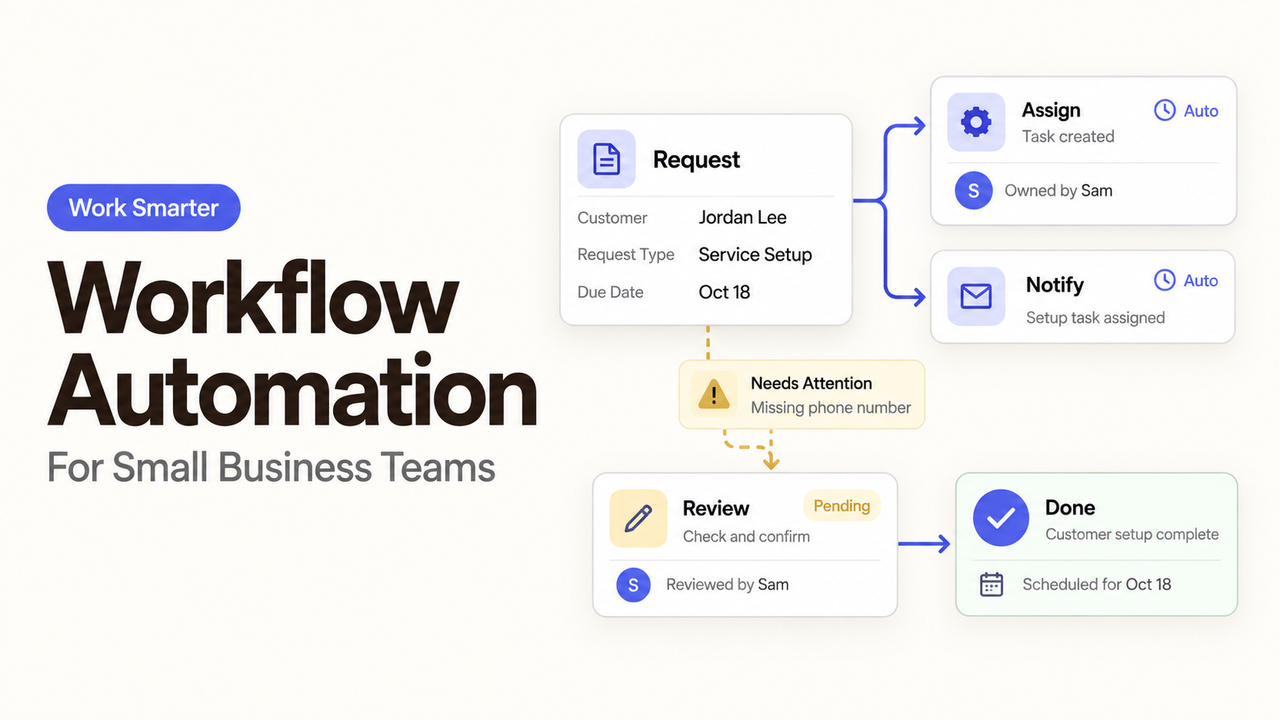
A service request lands in a shared inbox. One person forwards it, another copies the details into a spreadsheet, and nobody knows whether the customer received a reply. That is a workflow problem before it is a software problem.
Workflow automation can take care of the predictable handoffs. It can route the request, create the next task, and flag missing information. It should not decide what the customer deserves or hide a failed step. For a small team, the best first automation is usually narrow, easy to inspect, and easy to stop.
Workflow Automation in Plain English
Workflow automation uses software to move repeatable work from one defined step to the next. An event starts the flow. Rules or approved AI assistance interpret the input. The system takes an action, sends uncertain cases to a person, and records what happened.
The useful question is not simply, “What is workflow automation?” Ask which handoff is being automated and who remains responsible for the outcome.
From a Trigger to a Reviewed Outcome
Every reliable workflow needs a clear beginning and end. A trigger might be a submitted form, confirmed booking, signed agreement, changed record, or scheduled date. The next steps could validate information, assign work, send an acknowledgment, or update another system.
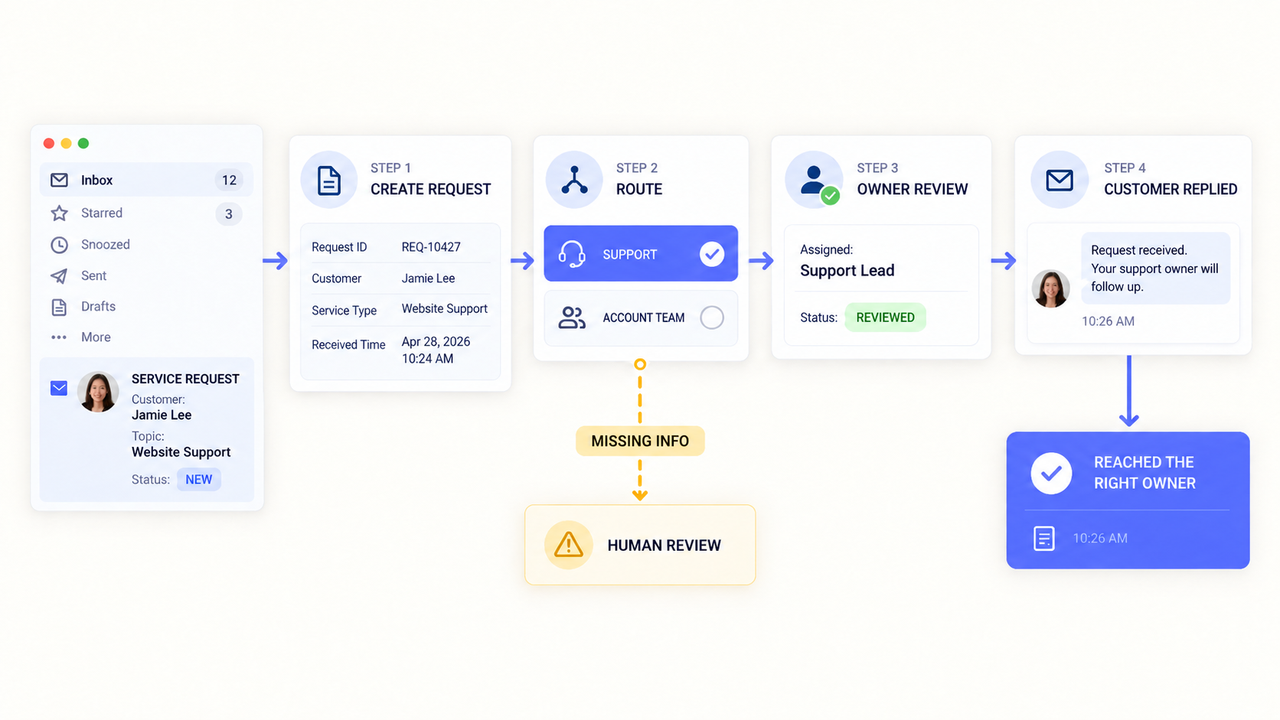
The end should describe a business outcome, not a green check mark in the tool. “A ticket was created” confirms an action. “The request reached the right queue and an owner reviewed it” is a result the team can verify.
A simple map should show:
- the event that starts the workflow;
- the information required before it continues;
- the rules used to route or change the work;
- the action the system may take;
- the exceptions that go to a person; and
- the record that proves the work reached its intended end.
If the team cannot draw that path, it is too early to automate it.
Rules-Based Steps and AI-Assisted Decisions
Rules work well when the answer is predictable. A confirmed booking can create a preparation task. A form marked “billing” can enter the finance queue. A missing email address can stop a confirmation message.
AI can help when the input varies. It may summarize a request, suggest a category, or draft a response. Those outputs are probabilistic, so they need a confidence boundary and a review rule. A low-confidence classification should go to a person instead of quietly entering the wrong queue.
If a dropdown already identifies the request type, a direct rule will be easier to test than AI. Use AI where interpretation adds value, then keep consequential actions with a named owner.
Workflow Automation Examples for Small Teams
Useful workflow automation examples start with an ordinary operational delay. They do not begin with a long list of platform features.
Route Service Requests to the Right Queue
Suppose requests arrive through a website form and a shared inbox. The team currently reads each message, copies the contact details, decides who should respond, and sends a confirmation.
An automated workflow could:
- start when a complete form is submitted;
- create a request with a unique reference number;
- route it by service type and location;
- send a factual receipt message; and
- alert a coordinator when no owner accepts it within the team’s chosen window.
Keep vague, urgent, or sensitive messages out of automatic replies beyond a basic acknowledgment. A person should resolve uncertainty and see requests that failed before ticket creation.
Create Preparation Tasks From Confirmed Bookings
A booking can trigger a short preparation sequence. Once the status becomes “confirmed,” the workflow might create an internal checklist, assign it to the service owner, and schedule a reminder before the appointment.
Use the system that holds the authoritative booking status. A calendar event may not show whether payment or required information is complete. Link the task to the source instead of copying sensitive details across tools.
Changes need their own path. If the booking moves, the due dates should move. If it is canceled, preparation tasks should close or be reviewed.
Choose the First Process to Automate
Start with a process that happens often enough to test but is not dangerous when something goes wrong. The team should already agree on the usual steps. Automation will expose disagreements; it will not resolve them.
Score Frequency, Friction, Risk, and Reversibility
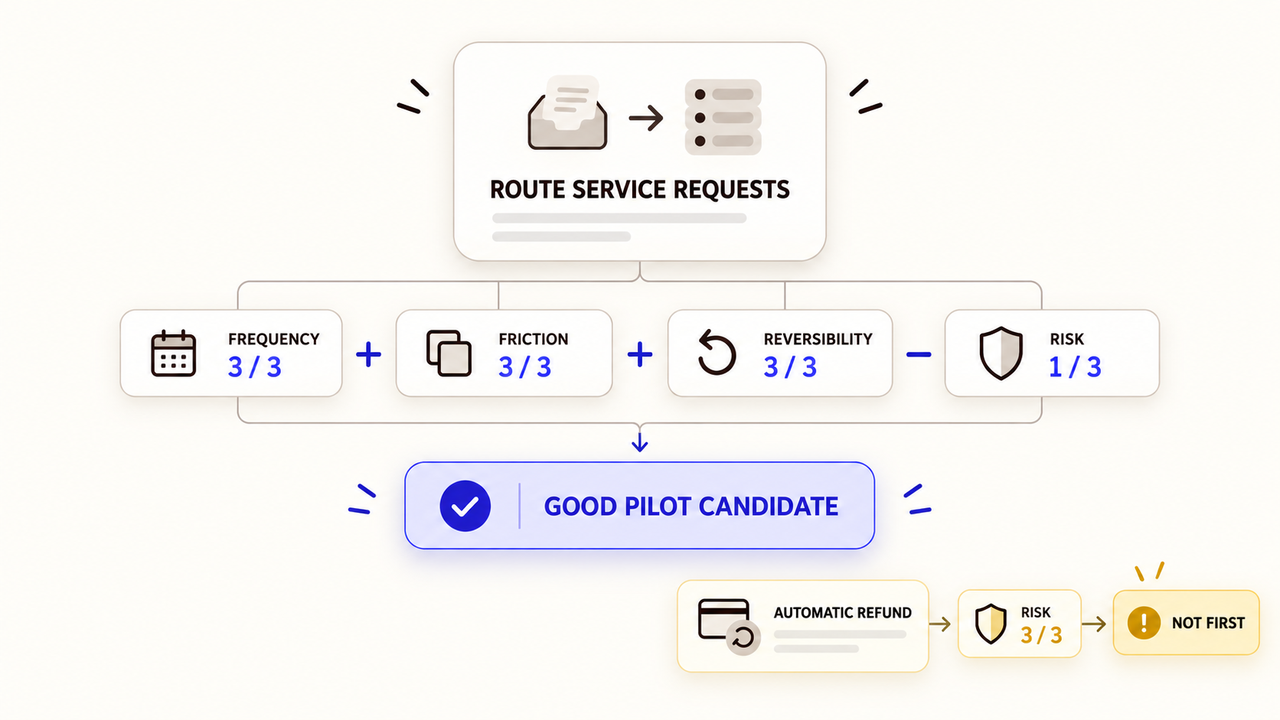
Use a short screening score before comparing tools. This is a decision aid, not an industry standard. Rate each factor from zero to three:
| Factor | A higher score means |
|---|---|
Frequency | The process happens often enough to justify attention |
Friction | It creates repeated chasing, re-entry, or avoidable delay |
Risk | A mistake could create greater customer, financial, data, or operational harm |
Reversibility | The team can easily inspect and undo the automated action |
Calculate a starter score as frequency + friction + reversibility − risk. Favor work with a strong score and low consequences. Reject any first pilot where the risk remains high, even if the process is frequent.
Good candidates include internal routing, checklists, reminders, and draft summaries. Refunds, deletion, access changes, and sensitive messages need stronger controls.
Keep Judgment-Heavy Decisions With an Owner
Mark each step that requires context, negotiation, empathy, policy interpretation, or an exception. Assign that decision to a role, not merely to “the team.” Name a backup owner as well.
The workflow can gather the record and present a recommendation. The owner decides what happens next, especially when money, access, rights, or regulated data are involved.
Human review is not a decorative approval button. The reviewer needs the source information, enough time, and authority to reject the proposed action.
Design a Workflow That Can Fail Safely
Automated workflows will meet expired credentials, changed field names, duplicate events, unavailable services, and incomplete records. Safe design assumes those events will occur and makes them visible.
Map Inputs, Permissions, Exceptions, and Alerts
For every step, record the required input and its source. Identify the authoritative system, then grant only the access needed. Reading booking data does not require permission to delete it.
Create exception paths for missing fields, duplicate requests, unsupported values, and failed connections. Decide whether each exception should stop, wait, retry, or go to a person. Silent continuation is rarely the right choice when a required input is missing.
Alerts should identify the failed step, affected record, and actions already completed. Avoid placing confidential customer data in a broad chat channel.
Set Review Points and Recovery Steps
Put review before the first hard-to-reverse action. That may be before an external message, payment, deletion, permission change, or update to an authoritative record.
Keep a run log with the request ID, step status, time, and reviewer. Use unique identifiers so a retry does not duplicate an order or task. Document how to pause the flow and finish manually.
Test more than the happy path. Remove a required value. Revoke a test connection. Submit the same request twice. Change a record after the first action. A safe pilot should produce a visible, recoverable exception instead of a plausible but incomplete result.
Build or Buy the Workflow
The choice is not limited to doing everything internally or outsourcing everything. A team may own the process and acceptance rules while using software or outside implementation help for the technical work.
Use Software for Standard, Maintainable Flows
DIY setup can fit a stable process using supported integrations. It still needs an owner who can test changes, reconnect accounts, and review failures.
Before buying, confirm trigger behavior, polling delays, task or usage limits, permission options, logs, data retention, exports, and support. A large integration directory does not prove that the exact fields and actions in your flow are supported.
Choose a tool the team can maintain after the builder leaves. Document its purpose and use business-owned credentials where available.
Get Help for Integration, Migration, or Governance
Outside help can make sense when a workflow crosses systems, depends on legacy data, or affects sensitive operations.
Give the provider the process map, permission limits, exception list, and acceptance tests. Ask who owns the workflow, connections, documentation, and exported records at handoff. The provider should also explain what remains manual and how the team can stop the system without waiting for support.
SpringBrand is an AI-native plugin marketplace, not an automation implementation agency. Its current site says an agent can use SpringBrand’s plugin layer through MCP to find and assemble tools for a stated outcome. If that model fits your environment, describe the outcome and explore the available plugin layer. Your team still owns the process definition, permissions, testing, and final approval.
Measure the Pilot
A pilot should show whether the work became easier to complete and supervise. Compare it with the same process before automation.
Track Cycle Time, Error Rate, and Intervention Load
Track a small set of operational measures:
- Cycle time: time from the trigger to the reviewed outcome.
- Error rate: completed runs that needed correction divided by completed runs reviewed.
- Intervention load: manual touches or review time required per run.
- Exception recovery: time and effort needed to restore or finish failed work.
Review the measures together. A shorter cycle time is not an improvement if errors or review work rise. A low error count may also be misleading if nobody checked the output.
Keep, revise, or stop the pilot based on its evidence. Expand through one controlled change at a time, not every available integration.
FAQ
Product-specific answers below reflect official documentation checked September 10, 2026; features and terms can change.
Which automation platforms support self-hosted or on-premise systems?
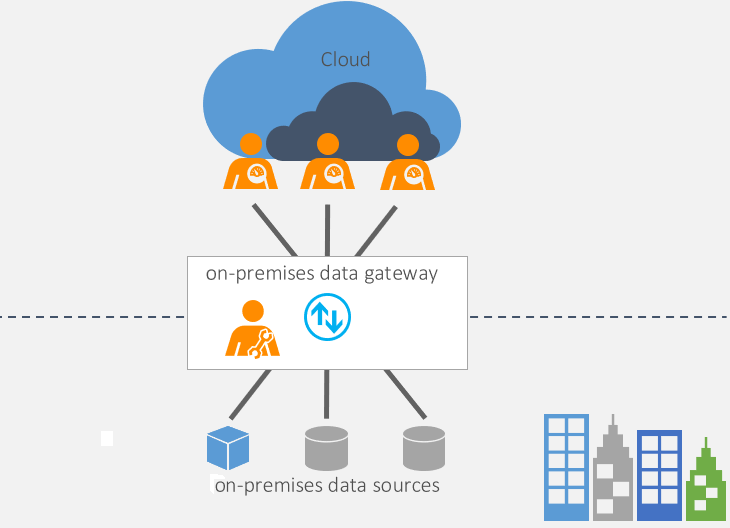
n8n documents a self-hosted edition, and Activepieces provides Docker-based self-hosting. Microsoft Power Automate remains cloud-based but can reach supported on-premises data through an on-premises data gateway. Compare deployment, update, backup, security, and licensing duties before choosing.
How do scheduled workflows handle daylight-saving time changes?
Behavior depends on the scheduler and configured timezone. Zapier says scheduled Zaps use the account timezone, while history timestamps appear in UTC. Recheck the timezone and run a before-and-after test around a clock change. For time-critical work, define whether “9:00 a.m.” means local wall time or a fixed UTC time.
Can an automation survive when its creator’s account is closed?
Only if ownership and connections can be transferred or replaced. Zapier’s Team and Enterprise offboarding process can transfer Zaps and app connections, but some credentials may later expire. Before closing an account, inventory workflows, transfer ownership, replace personal connections, and test every business-critical path.
Will Zapier rerun when a Google Sheets status returns to a previous value?
It can. Zapier’s “New or Updated Spreadsheet Row” trigger runs when a row is modified, and a selected trigger column can start the Zap when that column changes. If a status moves from Approved to Pending and back to Approved, Zapier says the return to a value previously seen in that row may not trigger the Zap again. Use a unique processed ID or timestamp when each transition must be detected. Add a unique processed ID or timestamp when duplicate downstream actions would matter.
Can seasonal automations be paused without losing run history?
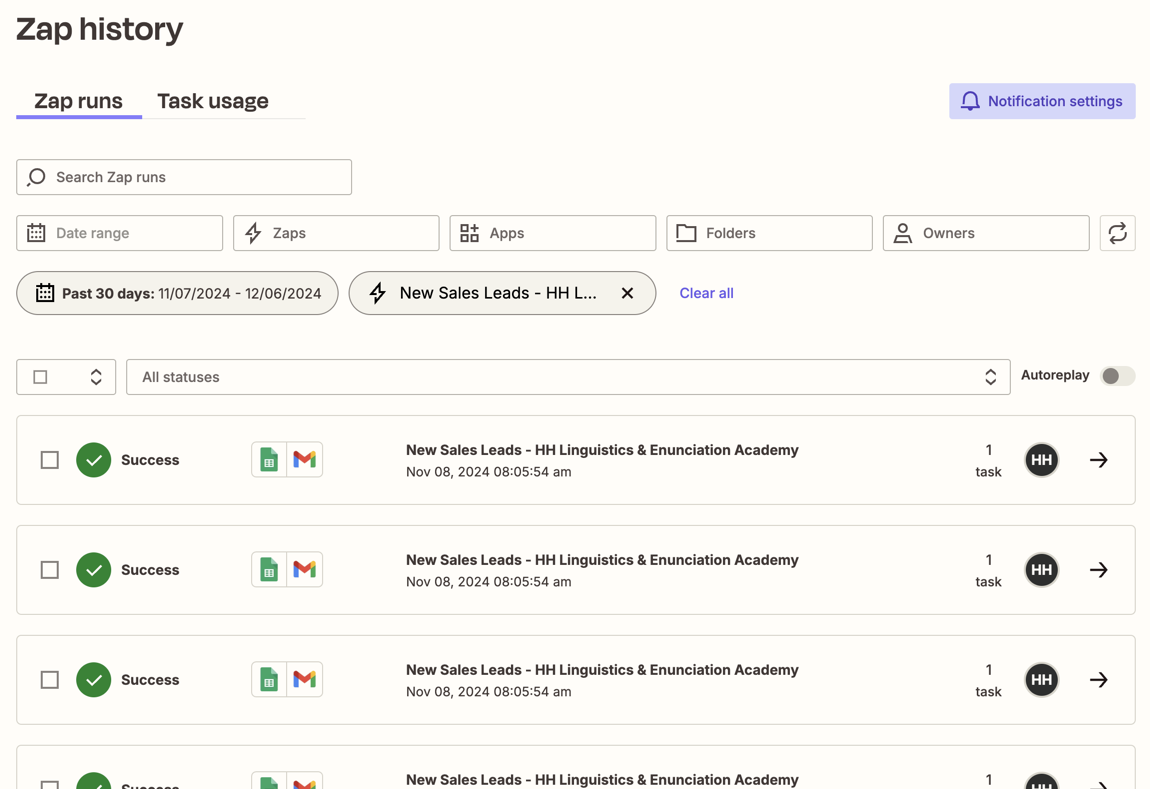
Pausing future runs does not make long-term history permanent. Zapier currently guarantees no more than 60 days of run data and displays up to 10,000 runs. Export records needed for audits or future owners before a seasonal pause, and document the restart date, current version, credentials, and first-run test.
Conclusion
Workflow automation works best when the process is already understandable. Define the trigger, required inputs, allowed actions, exception path, review point, and owner before choosing software.
Begin with one frequent, frustrating, low-risk process that is easy to reverse. Test failures as carefully as successful runs, then measure cycle time, corrections, and human intervention together. If the pilot makes the work easier to see and recover, the team has a sound basis for the next automated workflow.
Recommended Reads
Explore SpringBrand
Turn ideas into working workflows
Connect agents, APIs and tools in one workspace. Start with a task you want to get done.
Get started free
One account. 10,000+ APIs & capabilities
Give your agent APIs and plugins without separate keys or integrations for every provider.
Explore APIs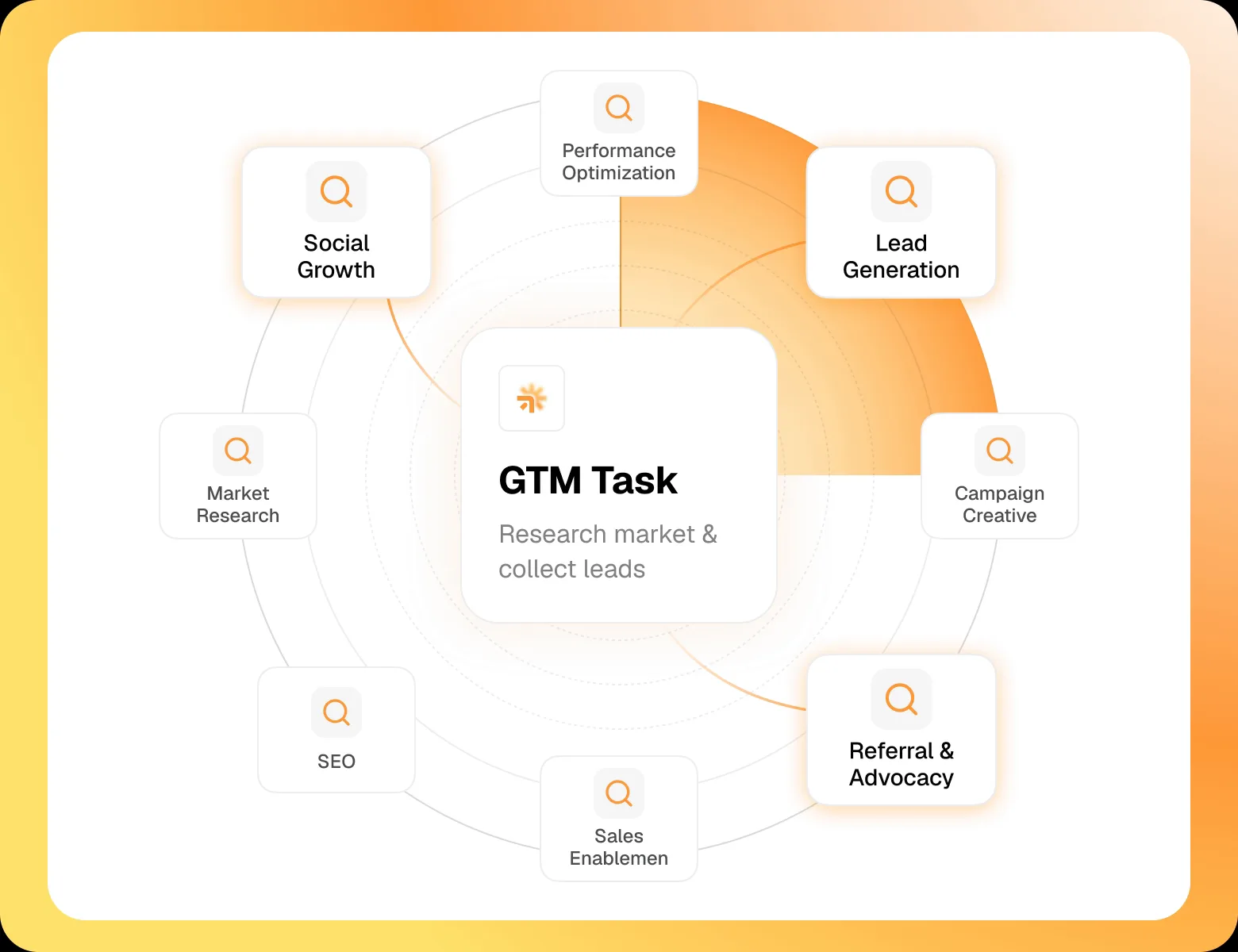
No tool expertise needed
Describe your GTM task. SpringBrand chooses the right APIs and plugins for your agent automatically.
Find tools for your task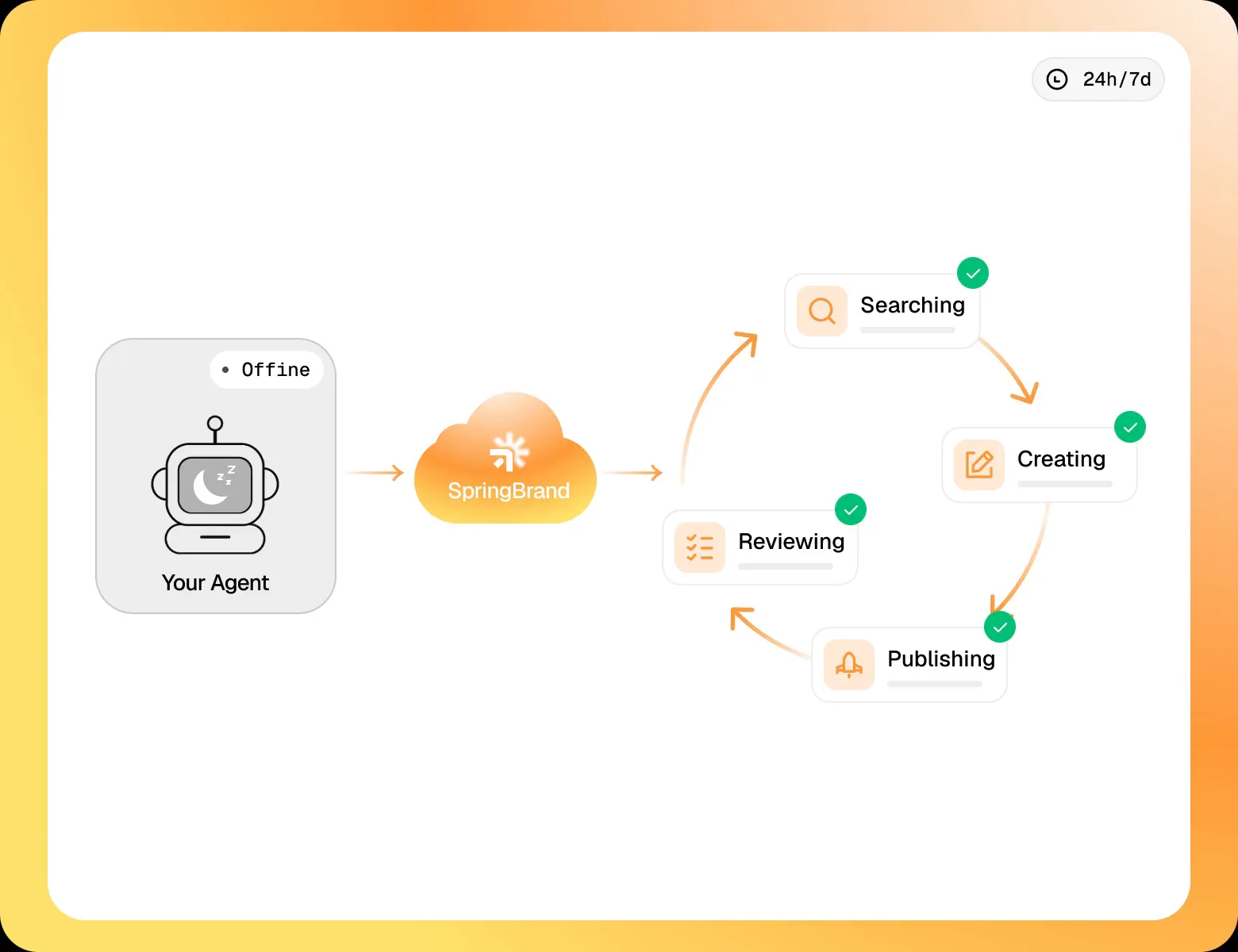
Run tasks 24/7
Connect your agent to SpringBrand to keep tasks running automatically, day and night.
Connect your agent